

Where to find this: Settings → Stripe → Disconnect Stripe
Why you might see a Stripe Connect banner
If you visit your Stripe dashboard and see a banner that says “CoachIQ has access to new tools to help manage your account” — don’t worry. This is standard Stripe Connect behavior. It means your Stripe account is still linked to CoachIQ.
How to disconnect Stripe from CoachIQ
1
Go to Settings → Stripe
From your CoachIQ dashboard, click Settings in the bottom-left corner, then click Stripe as an Admin.
2
Click Disconnect
Scroll to Disconnect Stripe at the bottom of the integration page. Review the confirmation before proceeding. Coach-role staff must ask an Admin; CoachIQ-managed demo connections cannot be disconnected here.
3
Confirm the disconnection
Confirm that you want to disconnect. Once complete, the connection between CoachIQ and Stripe is removed.
Done! Your Stripe account is no longer connected to CoachIQ. The banner in your Stripe dashboard will disappear.
What happens after disconnecting
Common questions
Can I reconnect Stripe later?
Can I reconnect Stripe later?
Yes. Go to Settings → Stripe Portal and click the Stripe logo to reconnect. You can connect the same Stripe account or a different one.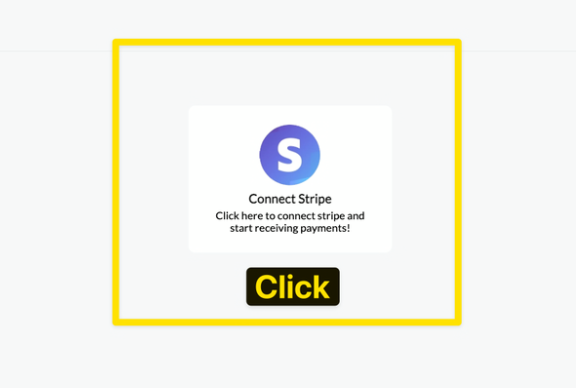
Will disconnecting cancel my customers' subscriptions?
Will disconnecting cancel my customers' subscriptions?
No. Existing subscriptions remain active on Stripe’s side. However, CoachIQ will no longer manage them — renewals won’t sync, and subscription changes made in CoachIQ won’t apply. If you need to cancel subscriptions, do that from your Stripe dashboard before disconnecting.
I already cancelled CoachIQ — can I still disconnect?
I already cancelled CoachIQ — can I still disconnect?
Yes. Log into your CoachIQ admin at admin.coachiq.io and follow the same steps. Without an active membership, you may see a membership or billing screen instead of the admin platform. If you can’t log in, contact info@coachiq.io and the team will disconnect it for you.
Stripe says only CoachIQ can disconnect — what do I do?
Stripe says only CoachIQ can disconnect — what do I do?
That’s correct — because CoachIQ initiated the Stripe Connect integration, the disconnect must happen from CoachIQ’s side. Follow the self-service steps above. No support ticket needed.
Related articles
Connecting Stripe
How to set up your Stripe account with CoachIQ
Stripe Dashboard
Navigate your Stripe dashboard and manage payouts