

Where to find this: Settings → Billing & Subscription
Update your payment method
1
Go to Billing Settings
From your dashboard, click your profile icon in the top right, then select Settings → Billing.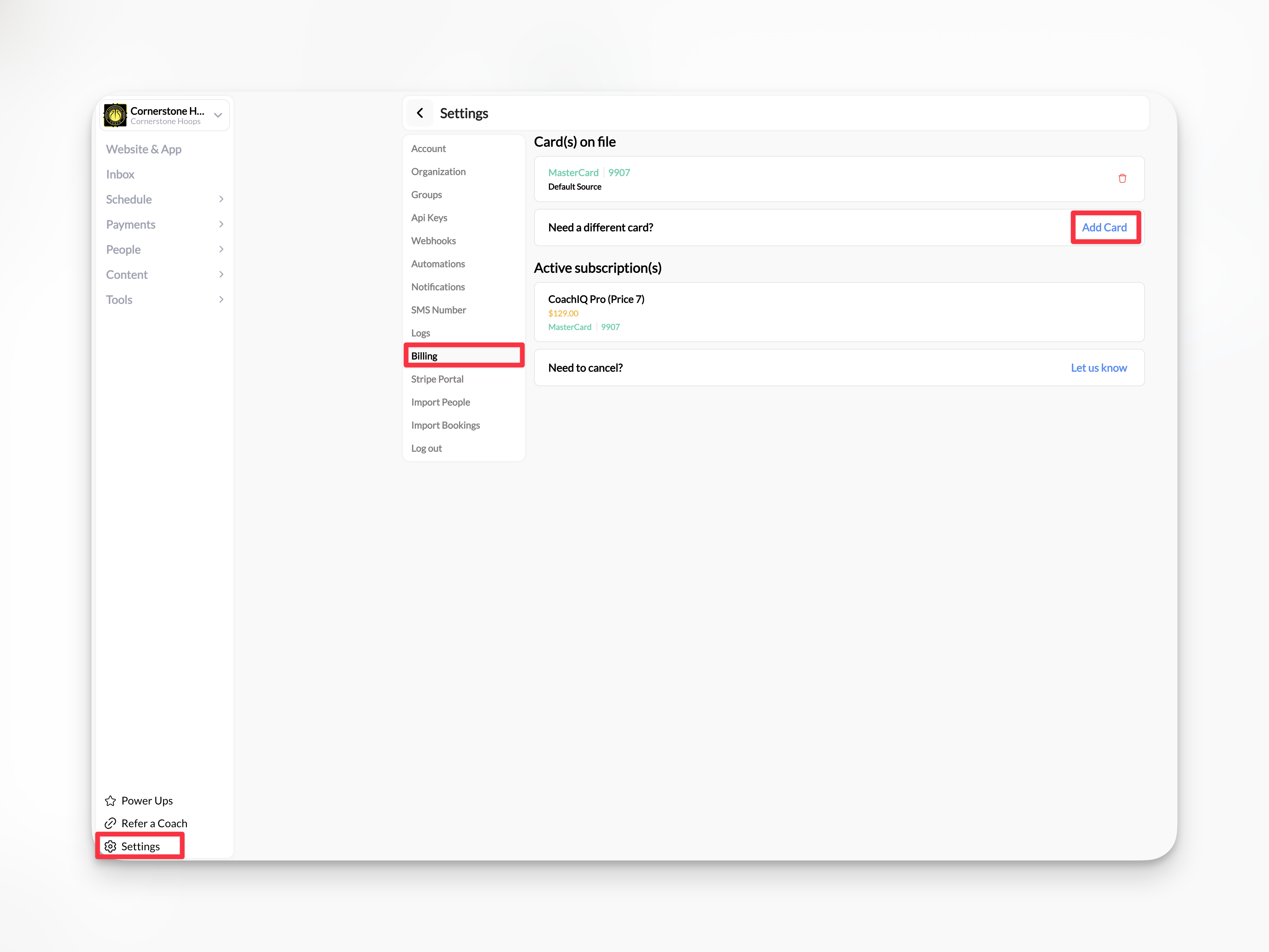
2
Update Payment Information
In the Card(s) on File section, click Add Card.Enter your new credit card details:
- Card number
- Expiration date
- CVV
- Billing ZIP code
3
Save Changes
Click Add Card to update your payment method.
Success! Your new payment method will be used for future subscription charges.
4
New Step
Common questions
When will the new card be charged?
When will the new card be charged?
Your new payment method will be charged on your next billing date. Your current billing cycle is not affected.
What if my payment fails?
What if my payment fails?
You’ll receive an email notification if a payment fails. Update your payment method within 7 days to avoid service interruption.
Can I switch between credit card and bank account?
Can I switch between credit card and bank account?
Currently, CoachIQ subscriptions support credit and debit cards only.