

Start on ChatGPT in a desktop web browser. The connection is added through ChatGPT’s app/plugin setup, followed by CoachIQ authorization. The setup prompt later in this guide helps build your business context; it does not replace those account setup steps.
Before you begin
Have your CoachIQ staff login ready and choose the group this connection should use. ChatGPT’s current developer-mode documentation lists Plus, Pro, Business, Enterprise, and Education web accounts. Managed workspaces may also require administrator access or approval. Check your account’s available controls before purchasing or changing a plan. ChatGPT developer mode. CoachIQ’s MCP server address is:1. Connect CoachIQ
Open ChatGPT Plugins, choose Add → Create MCP App, and enter these details. If your account uses the developer-mode app interface instead, follow OpenAI’s developer-mode setup to enable that interface first. You do not need to look for a developer-mode switch when Create MCP App is already available.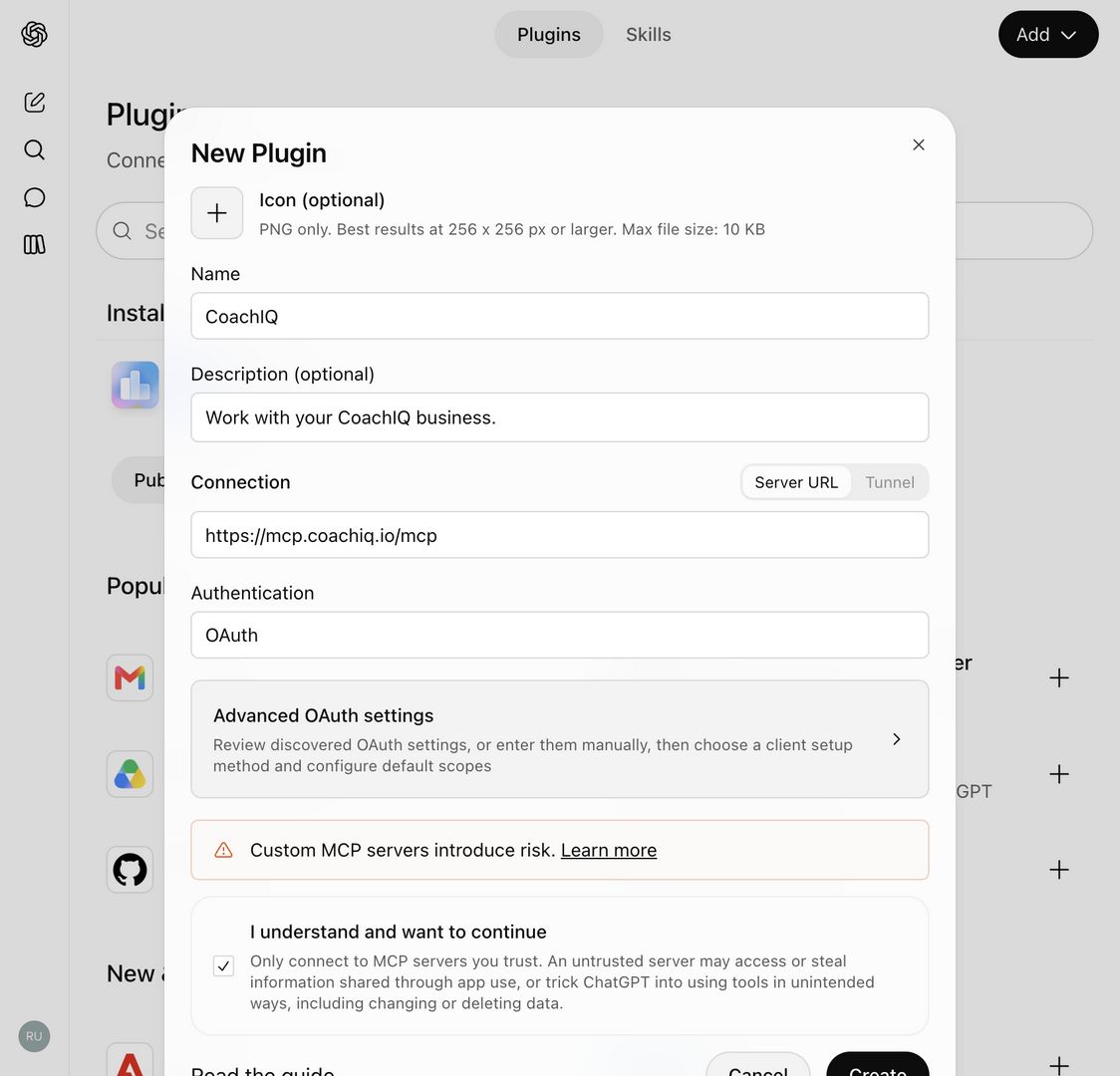
Create the CoachIQ plugin with the hosted MCP URL and OAuth. Review ChatGPT's connection notice before continuing.
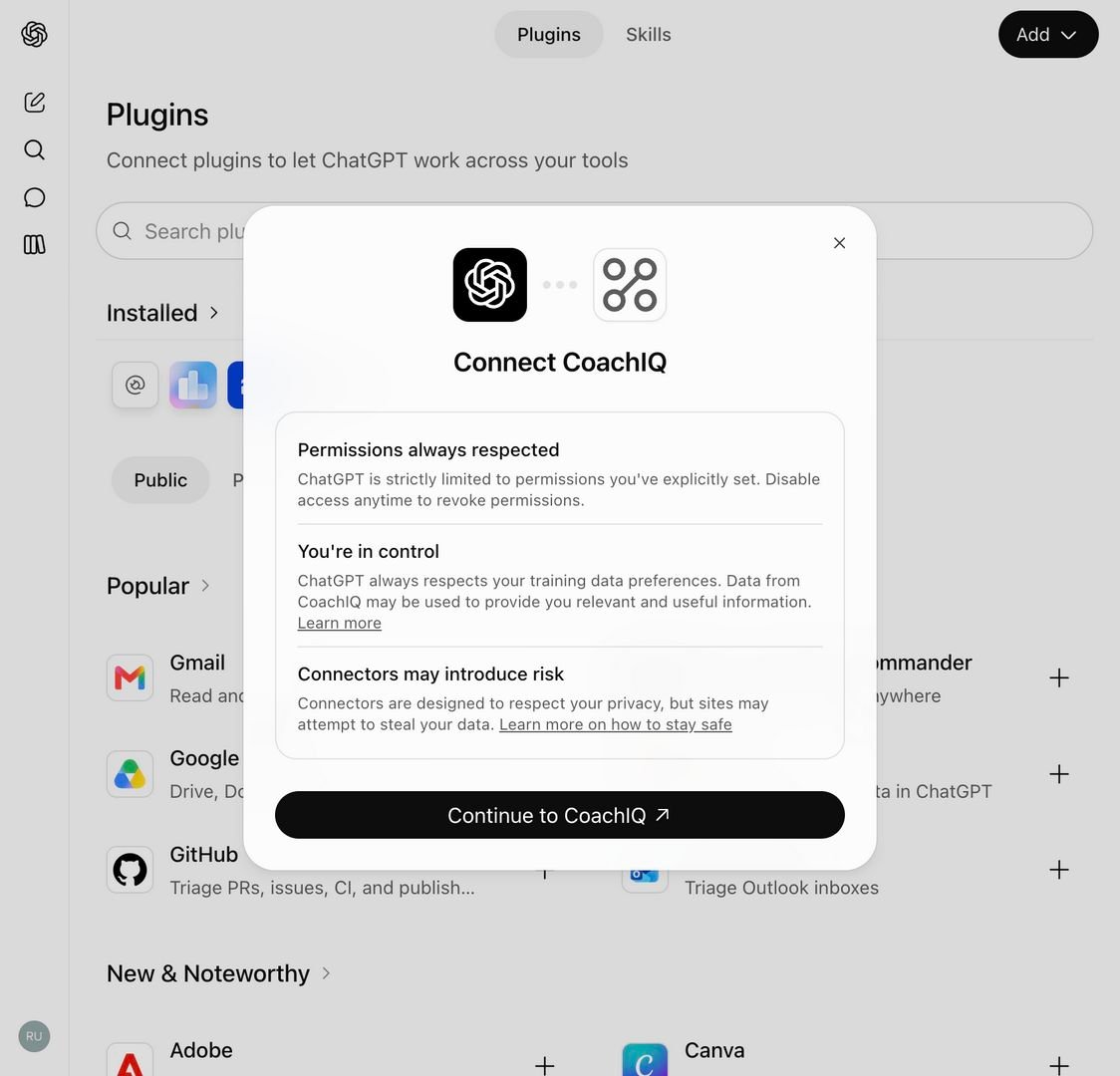
Continue to CoachIQ opens the separate sign-in and group-approval step. The plugin is not authenticated until that flow is complete.
Choose your group and access
Sign in through the CoachIQ page that opens. Confirm the organization, group, and role before approving access. The approval screen shows who is connecting, which group, which app, what access, and where it returns. The group ID and connection address are tucked under Technical details if you need them. If you change your mind, choose Cancel on the sign-in, group choice or approval screen. The app is told you declined, even when the screen opened in a new tab or popup, and no access is granted. A CoachIQ connection covers one group. To work with another group, use a separately named connection authorized for that group. Project names do not change the group a connector can reach. If you want supported changes, select I allow this assistant to make supported changes in this group on the CoachIQ approval screen. Leaving it unchecked grants read-only access. Read the final access summary and button before continuing.Verify the access actually granted in the next step. A connected badge does not prove write access, and approval does not make every CoachIQ feature available through ChatGPT. Read-only access is enough for the business-brief setup below.
2. Confirm the connection
Start a new chat and select CoachIQ. The current developer-mode route uses the composer + → Developer mode app selection. In ChatGPT Work, you can invoke an installed plugin with @CoachIQ. Use the controls available in your account; if CoachIQ is missing, return to its installation and workspace settings. Using developer-mode apps. Ask ChatGPT to check the connection:“Check my CoachIQ connection with a small live read. Confirm my business, group, and whether you can read only or make supported changes. Don’t change anything.”Once it confirms the correct business and a successful live read, continue below. If it cannot access CoachIQ, use the troubleshooting steps at the end of this guide.
3. Set up your personal Project
Once CoachIQ is connected, copy and paste this prompt into the connected chat. It will help ChatGPT learn your business through MCP, consult help.coachiq.io, and prepare a Project tailored to how you work.Save your Project
- Create a private ChatGPT Project using the suggested name.
- Paste the generated instructions into the Project’s instructions and add the Business Brief to Sources.
- Open a new chat inside the Project and select CoachIQ.
Start using it
Try one of the five requests in your Business Brief, or ask: “What can you help me with in CoachIQ this week, based on my goals?” Use the same Project for ongoing work. The Help Center explains features; the MCP provides current business information and supported actions. Review proposed changes before approving them, and update your brief when your goals change.Troubleshooting
CoachIQ says No eligible groups
CoachIQ says No eligible groups
Check the CoachIQ account shown on the approval page. MCP requires an accepted Admin or Coach membership in the intended group. An invitation that has not been accepted, a parent/athlete account, or access to a different group does not qualify. Sign in with the correct staff account, or ask your group administrator to check your membership, then retry the connection.
I cannot find Developer mode or add a custom connection
I cannot find Developer mode or add a custom connection
Check that you are using ChatGPT on the web, in the correct account and workspace. Review its current eligibility and workspace controls. A workspace administrator may need to allow or configure the connection. The official instructions above are the reference for menus that differ from your account.
The prompt says CoachIQ is not available
The prompt says CoachIQ is not available
Finish adding and installing the connection, then select it in the current chat. If you are using Work, try invoking the installed CoachIQ plugin with @. The prompt cannot substitute for sign-in or tool selection.
I approved changes, but ChatGPT still says read-only
I approved changes, but ChatGPT still says read-only
Ask it to inspect the live connection’s access rather than assume permissions from the approval screen. Reauthorize and check the changes option. If an older connection has no write choice, remove and add it again. If verification still fails, contact CoachIQ Support with the platform, group, redacted access screenshot, and the verification result. Continue with reads and drafts while it is investigated.
A browser error appears at the MCP URL
A browser error appears at the MCP URL
Enter the full address in the MCP connection form, not as an ordinary webpage or a link for ChatGPT to browse. CoachIQ uses the authorization flow to grant access; opening the address directly is not a connection test.
I see the wrong business or group
I see the wrong business or group
Stop before approving a change. Use a connection authorized for the intended group and verify it again. Keep separate business briefs for separate groups.
My new Project chat cannot access CoachIQ
My new Project chat cannot access CoachIQ
Check the selected app/plugin and chat mode in that new conversation. Project files can provide context even when live tools are unavailable; ask the assistant to distinguish the two. Check saved context and live access in the new chat before relying on live operations from the Project.
The assistant proposed a change, but CoachIQ did not update
The assistant proposed a change, but CoachIQ did not update
A proposal is not a completed write. Check whether you approved the tool action and whether it returned success. If the outcome is unclear, inspect the original record before retrying to avoid duplicate work.