

Create your sheet
- Open Tools → Sheets as an organization Admin.
- Select Create sheet.
- Enter a descriptive name, such as Fall camp equipment or Client follow-ups.
- Select Create sheet to open the grid.
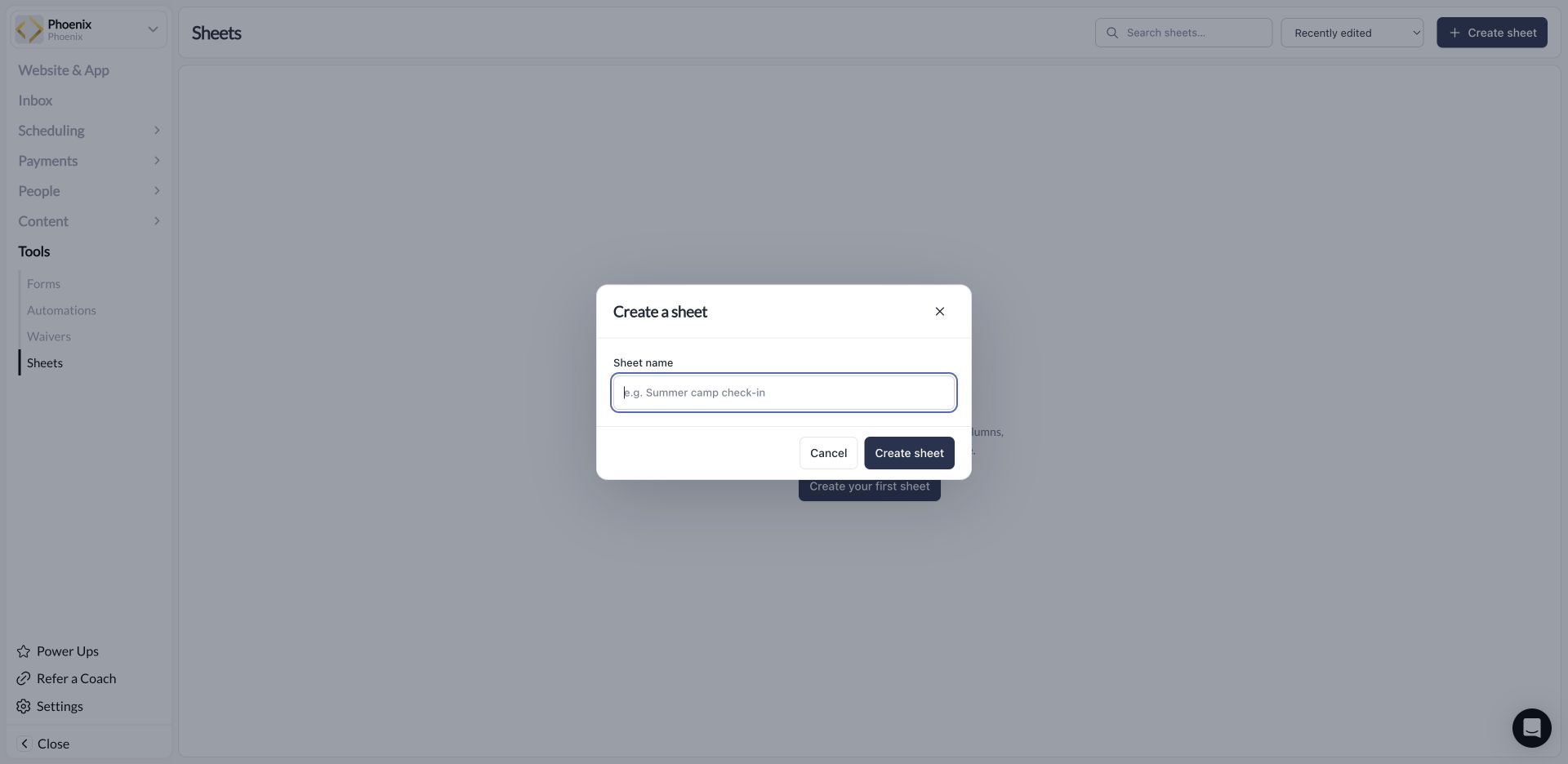
Name the sheet before opening its grid.
Add columns
Choose Add column, enter the column name, select its type, and save. Pick a type that matches the information you want to enter:
For select columns, enter the available options in the column setup. A new column is available across the sheet’s rows.
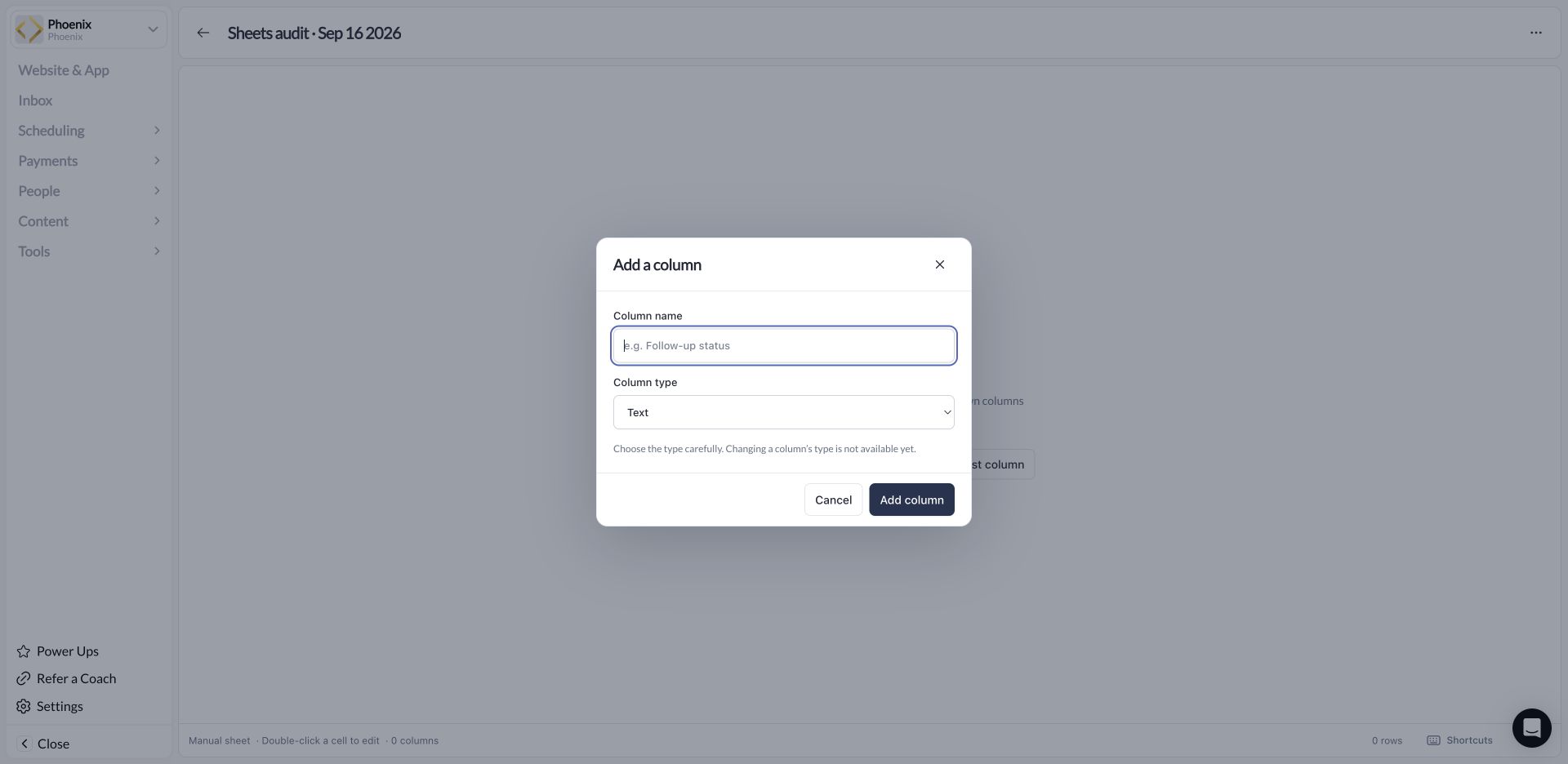
Choose the column's type before entering values.
Changing an existing column’s type is not currently available. If you chose the wrong type, add a new column with the correct type and move the information you need before removing the old column.
Add rows and edit cells
Use Add row in a manual sheet. Double-click a custom cell to edit it, then use Save or Cancel in the editor. Enter values that match the column type; for example, a Number column expects a number. A simple equipment checklist might contain Item (Text), Quantity (Number), Needed by (Date), and Status (Single select). Each row is one item. Start with a few rows so you can check the structure before adding the rest. Custom columns can also sit beside connected data. Live source values are read-only; edit them through the source record rather than trying to overwrite them in the grid.Rename, sort, and hide columns
Open the column’s menu to rename it, sort, filter, hide it, or delete a custom column. Hiding a column changes the view; deleting it removes that column’s saved values. Live columns have different controls because the source owns them. Use the sheet’s column visibility controls to show a hidden column again. For filters and totals, see Use your sheet.Keyboard controls
Open Shortcuts in the sheet to see the available keys. The grid supports arrow-key navigation, Enter or F2 to edit, Escape to cancel, and Cmd/Ctrl+F for search. Follow the editor’s Save/Cancel controls when entering values.Manage the sheet
The sheet actions menu includes rename, export, duplicate, column visibility, shortcuts, and delete. Give duplicated sheets a name that makes their purpose clear. Deleting a sheet is irreversible. It removes the sheet’s tracking information, while connected CoachIQ source records remain. Export any information you need before confirming deletion.Bring CoachIQ records into a sheet
Learn the difference between all matching records, selected records, and your custom columns.