

Choose a source
- Create or open a sheet in Tools → Sheets.
- Select Connect data.
- Choose the type of CoachIQ record you want to work with.
- Review the preview and record selection.
- Read the confirmation before connecting, especially if the sheet already contains data.
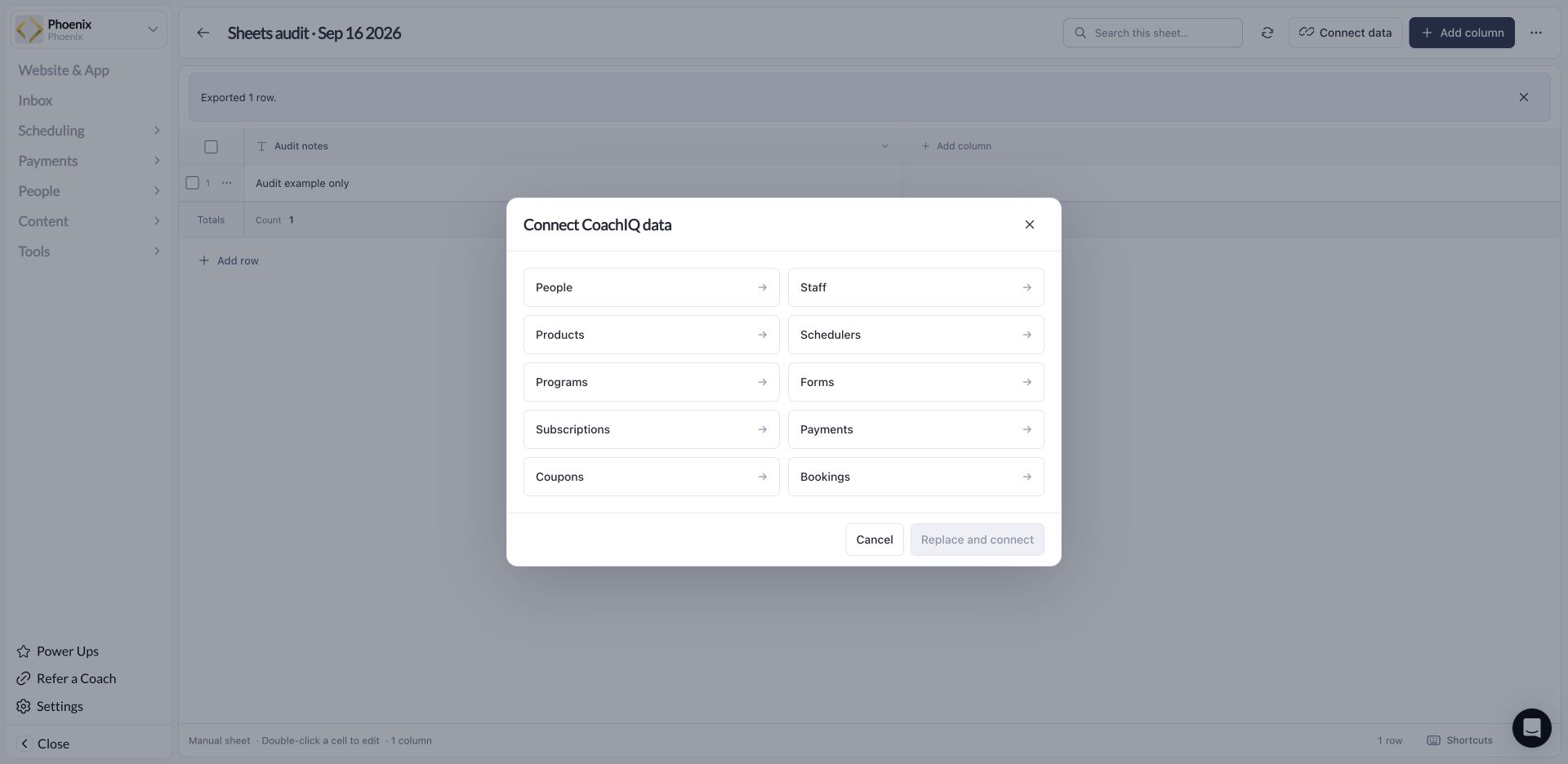
Choose one source for the sheet. This example already contains manual data, so the confirmation is a replacement action.
Forms means form records. It does not import submitted answers automatically. Review answers in Forms → Responses.
Choose which records belong in the sheet
A fixed selection is still live data. It fixes which records are included; it is not a frozen export of their values. Check the selected records before connecting, including selections made across searches.
If the preview is empty, check the group, permissions, source, and any filters. An empty preview does not prove that your entire business has no records.
Understand live and custom columns
Live headers have a link indicator. Their values come from CoachIQ and cannot be edited directly in the sheet. Use a linked row’s Open in CoachIQ action to reach the original record. Your custom columns hold information you add yourself, such as a follow-up status or internal note. Keep that distinction in mind: typing a status in a custom column does not change a product, session, tag, or client profile. Use the refresh control when you need current values and check the displayed update status. If a refresh fails, resolve the error before treating the sheet as current. An exported file is a snapshot from the time you downloaded it.Replacing a source or existing sheet data
Connecting data to a populated manual sheet, or using Replace live source, is a replacement workflow. Read the warning and review what will be replaced before confirming. Export existing work first if you need to keep it. To keep both your current sheet and a new connected view, create a separate sheet and connect it there.Unlink live data
Use Unlink live data from the connected sheet’s actions menu when you want to stop updates. The confirmation explains that rows and custom values remain, while live values stop updating. Review that message before proceeding. Unlinking affects the sheet’s connection; it does not delete the original CoachIQ records. Once unlinked, the retained values should be treated as a snapshot.Troubleshooting
I can see a record in CoachIQ but not in my sheet
I can see a record in CoachIQ but not in my sheet
Check the connected source, group, filters, and whether you chose a fixed set of records. Refresh after checking those settings. A record outside a fixed selection will not be included just because it exists in CoachIQ.
I cannot edit a cell
I cannot edit a cell
Check whether its column is live. Live values are edited in the original CoachIQ area; custom values are edited in Sheets.
Connecting data asks me to replace something
Connecting data asks me to replace something
The sheet already has data or a live source. Cancel and create a separate sheet if you want to preserve the existing view. Otherwise export what you need and review the replacement confirmation carefully.