

Where to find this: Website Builder → Pages → Add New Page → Page Template dropdown
Quick page creation with templates
CoachIQ provides pre-built page templates designed specifically for coaching businesses. These templates include the right sections, content structure, and formatting to help you quickly add professional pages without starting from scratch.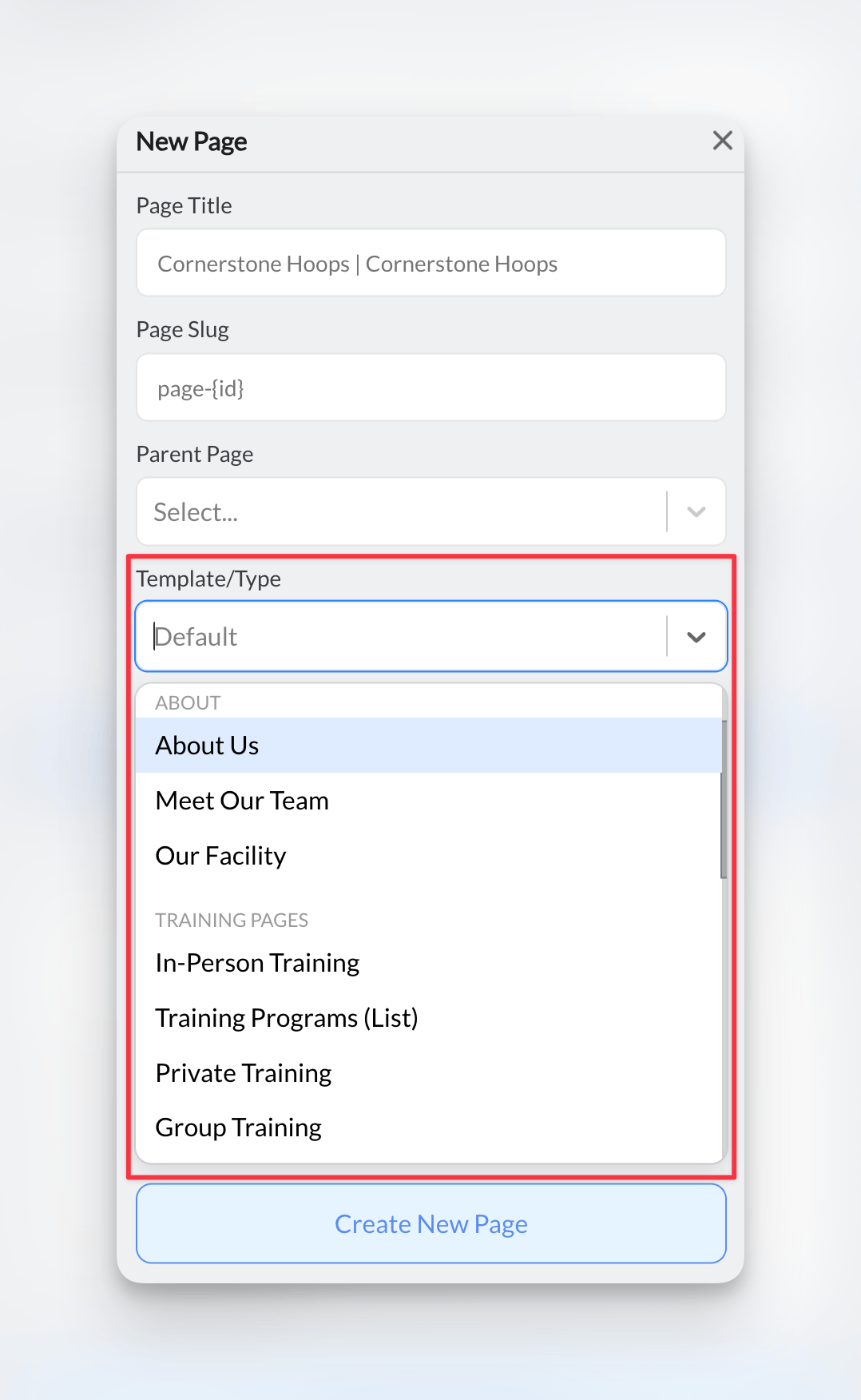
Available page templates
Service Templates
Business Pages
Sign-up Pages
Legal Pages
Template categories explained
- Training & Services
- Business Essentials
- Registration & Sign-ups
- Legal & Compliance
Perfect for showcasing your coaching offerings:
- Training Programs: Service descriptions, pricing, booking buttons
- Online Training: Digital coaching packages, video content
- Camps & Clinics: Event details, registration, schedules
- About Training: Coach philosophy, methodology, results
How to use page templates
1
Access the page creation dialog
From your Website Builder, click the Pages dropdown in the left sidebar, then select Add New Page.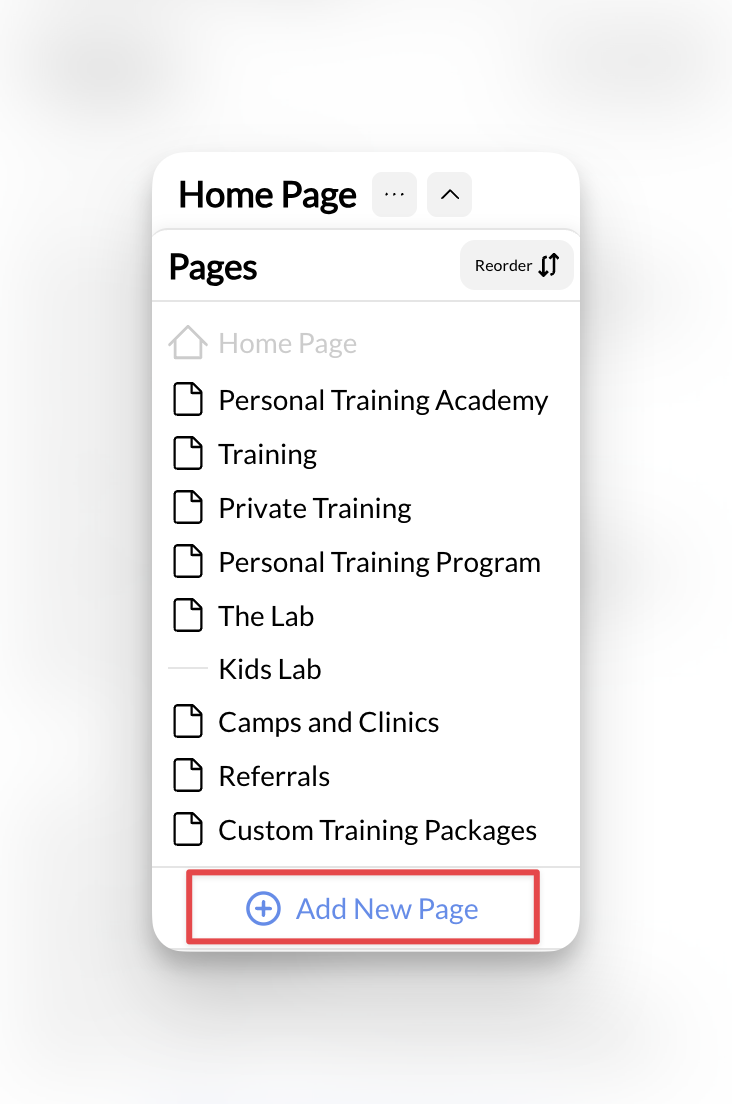
2
Choose your template
In the Page Template dropdown, browse the available options and select the template that matches your needs.
Template preview: Each template name clearly indicates its purpose - “Privacy Policy,” “Training Programs,” “Camp Registration,” etc.
3
Configure page details
Fill in the basic page information:
- Page Title: What visitors will see (e.g., “Privacy Policy”)
- Page Slug: URL-friendly version (auto-generated)
- Parent Page: Leave blank for main pages
4
Create and review
Click Create New Page and the template will automatically generate with pre-built sections and placeholder content. Where the template text says
{BUSINESS NAME}, your business name is filled in for you.Template loaded: Your new page appears with professional sections ready for customization.
Template walkthrough video
Customizing template content
After creating from template
1
Review the generated sections
Each template includes relevant sections for that page type. For example, a Privacy Policy template includes: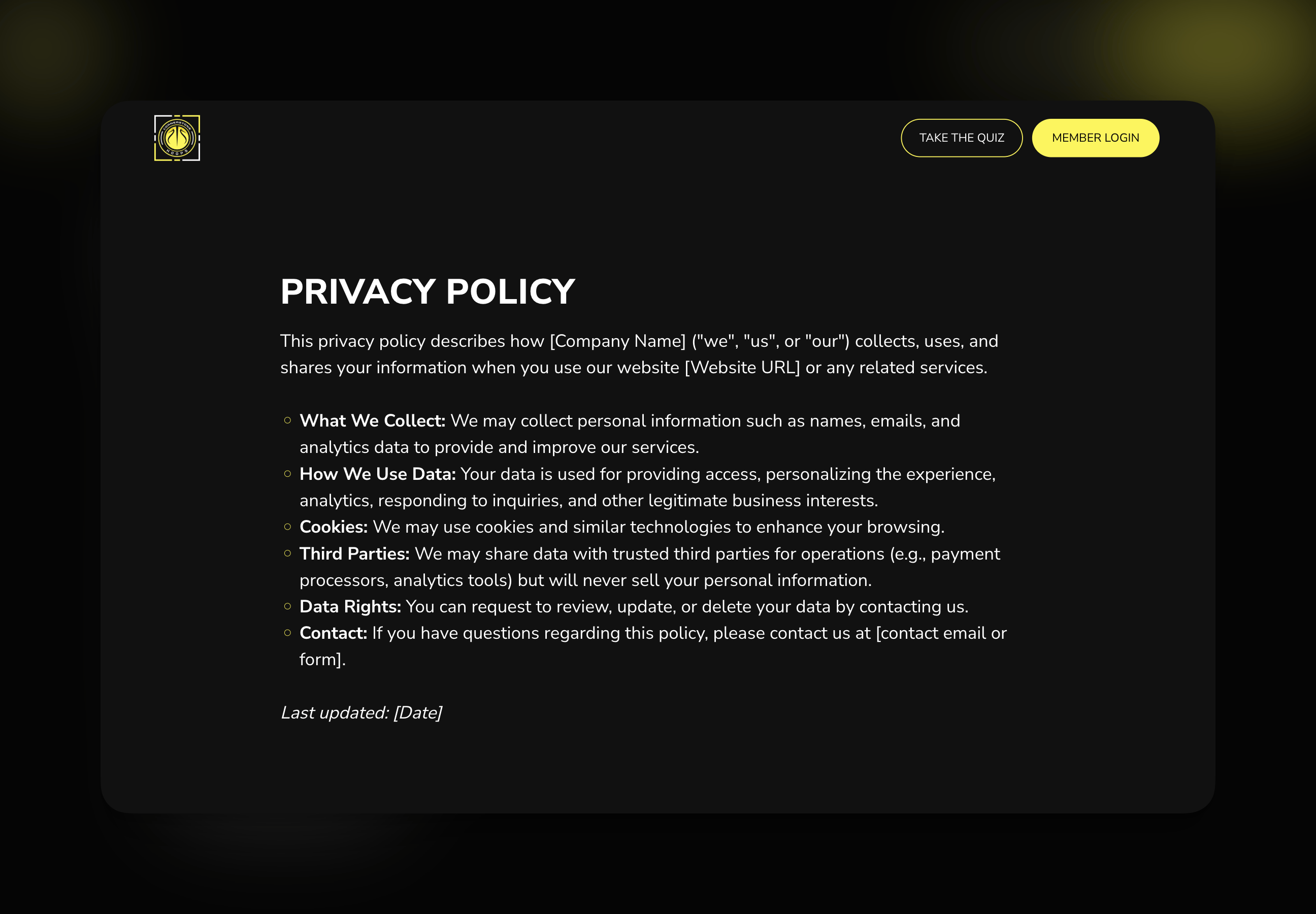
- Introduction
- Information Collection
- Data Usage
- Cookie Policy
- Data Rights
- Contact Information
2
Update placeholder content
Replace template placeholders with your specific information:
- Your coaching business name (filled in automatically on pages created from a template, but check it)
- Your contact details
- Your specific policies and procedures
- Relevant legal language for your location
3
Publish the page
Once you’ve customized the content, click Publish to make the page live on your website.
Navigation ready: Published pages automatically appear in navigation dropdown menus for easy linking.
Adding template pages to navigation
Example: Adding privacy policy to footer
1
Create and publish the page
First, create your privacy policy page using the template and publish it (as shown above).
2
Access footer navigation
In your Website Builder, find the Footer section to add navigation links.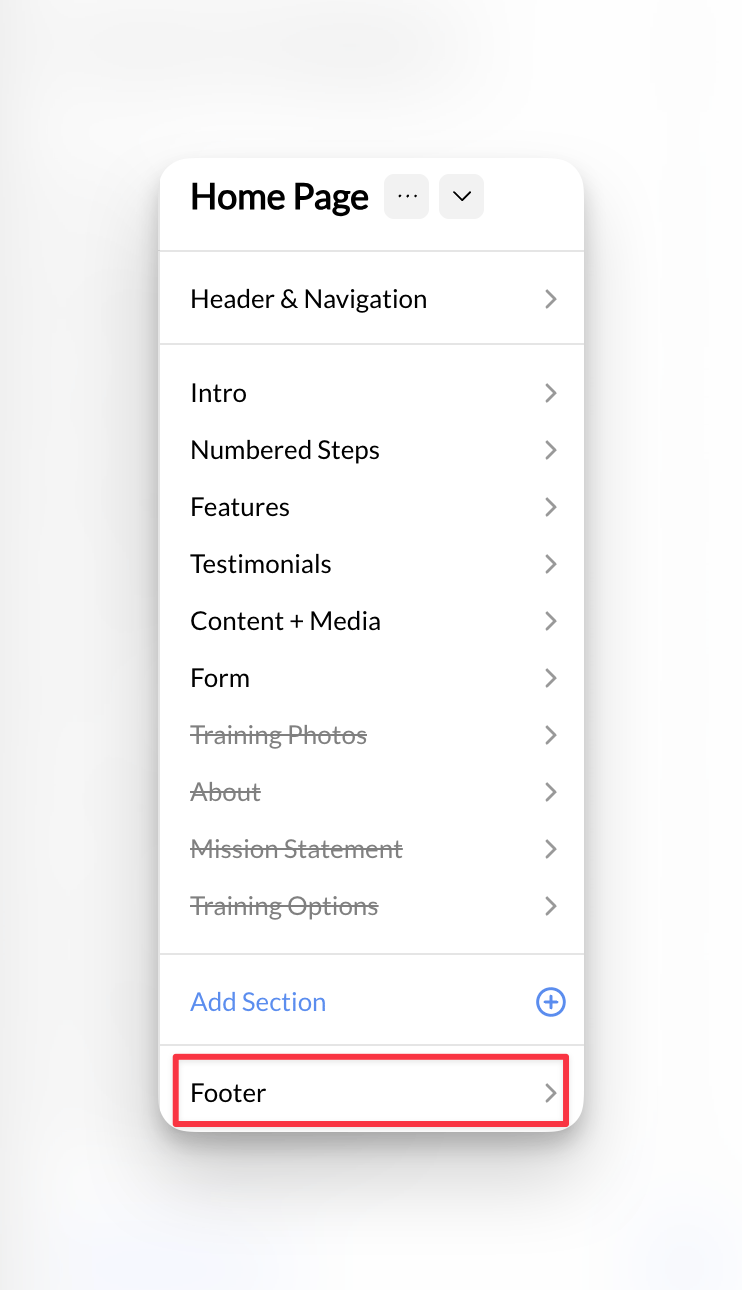
3
Add the link
- Click Add Link in footer navigation
- Link Text: “Privacy Policy”
- Destination: Select your newly created privacy policy page from the dropdown
- Save and publish changes
Link active: Your privacy policy page is now accessible from your website footer.
Best practices for template usage
Choose the right template for your content
Choose the right template for your content
Don’t force content into the wrong template. If you’re creating a training program page, use the “Training Programs” template rather than trying to modify a “Contact” template. The right template saves time and provides better structure.
Customize thoroughly, don't leave placeholders
Customize thoroughly, don't leave placeholders
Templates include placeholder text to show you what content should go where. Always replace ALL placeholder content with your specific information. Generic placeholder text looks unprofessional and hurts SEO.
Maintain consistent branding across templates
Maintain consistent branding across templates
While templates provide structure, ensure your content maintains consistent tone, terminology, and branding across all pages. This creates a cohesive experience for your website visitors.
Keep legal templates current and compliant
Keep legal templates current and compliant
Legal page templates provide a starting point, but laws vary by location and change over time. Consider having legal pages reviewed by a professional, especially for privacy policies and terms of service.
Use service templates to highlight your unique approach
Use service templates to highlight your unique approach
Training and service templates provide standard coaching industry structure, but customize them to showcase what makes your coaching unique - your methodology, results, specializations, and success stories.
Template-specific tips
For legal pages (Privacy Policy, Terms, Disclaimers)
- Update regularly: Laws change, especially privacy regulations
- Include your contact info: Required for many legal frameworks
- Link prominently: Add to footer navigation for easy access
- Keep language clear: Avoid overly complex legal jargon when possible
For service pages (Training Programs, Online Coaching)
- Include pricing: If you offer standard rates
- Add booking buttons: Link to your scheduling system
- Show results: Include testimonials and success metrics
- Highlight unique value: What sets your coaching apart
For sign-up pages (Registration, Trials)
- Minimize form fields: Only ask for essential information
- Clear value proposition: Explain what they get by signing up
- Connect to payments: Link to your products and billing
- Set expectations: Timeline, next steps, what to bring
Common questions about templates
Can I modify template sections after creating the page?
Can I modify template sections after creating the page?
Yes! Templates provide the initial structure, but you can add, remove, or modify sections just like any other page. The template is just a starting point to save you time.
What if I don't see a template for what I need?
What if I don't see a template for what I need?
Use the “Default” template for custom content needs, or choose the closest template and modify it. You can always add or remove sections to match your specific requirements.
Can I change templates after creating a page?
Can I change templates after creating a page?
While you can change templates, you may lose customized content. It’s usually better to manually add or remove sections rather than switching to a completely different template.
Do I need legal pages for my coaching website?
Do I need legal pages for my coaching website?
Most coaching businesses benefit from having privacy policies (especially if you collect email addresses or use analytics), terms of service, and liability waivers. Check your local requirements and consider legal consultation for high-liability activities.
Can I use the same template multiple times?
Can I use the same template multiple times?
Absolutely! You can create multiple pages from the same template. For example, use the “Training Programs” template for different sports or age groups you coach.