

Where to find this: Website Builder → page dropdown → Add New Page (to create the blog page) or the book icon in the left sidebar (to manage posts)
Set up your blog page
1
Create a new Blog page
In the Website Builder, click the page dropdown at the top and select Add New Page. Title the page Blog, then click Create Page.CoachIQ will generate an automatic template for the page. Click Publish to save it.
The blog editor is separate from your main website pages. Everything you create inside it is a blog post — not a standard website page.
2
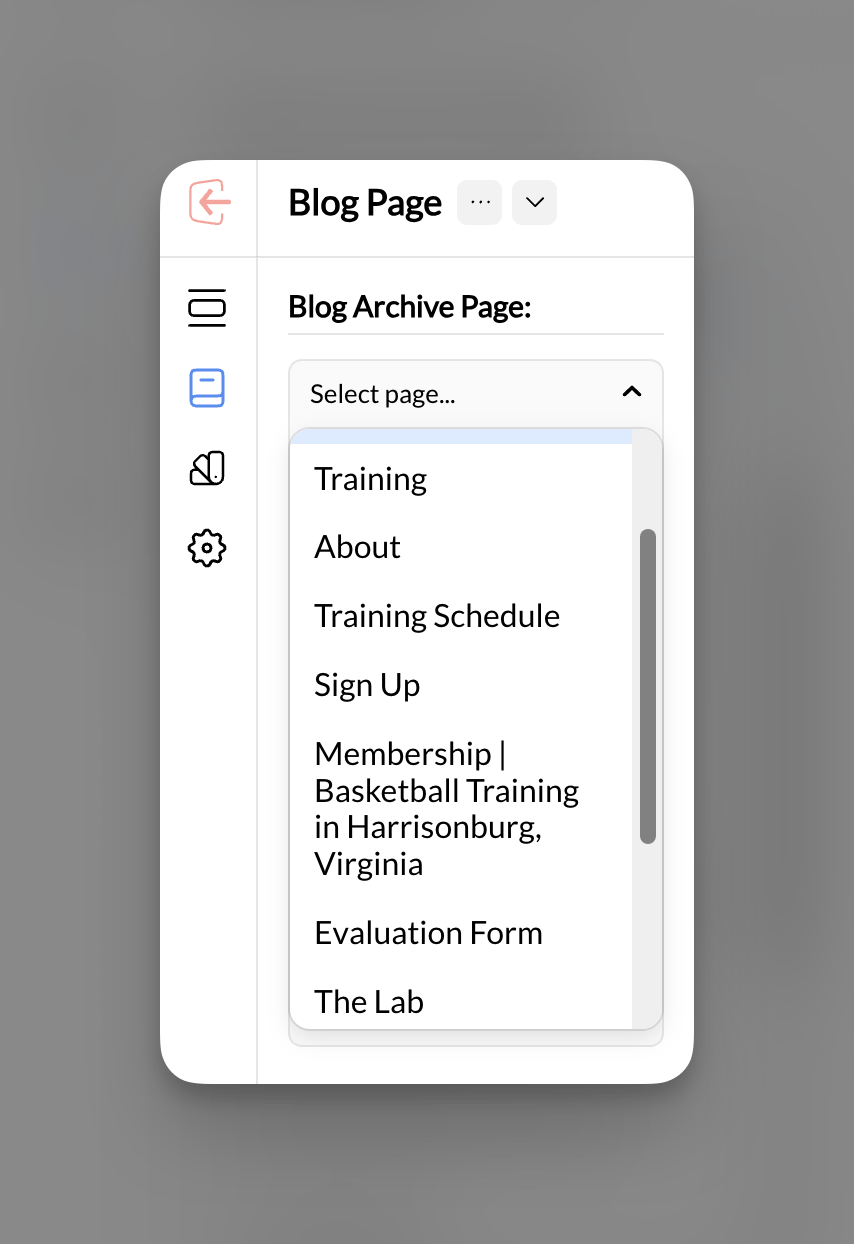
Set your Blog Archive Page
Click the book icon in the left sidebar to enter the blog editor.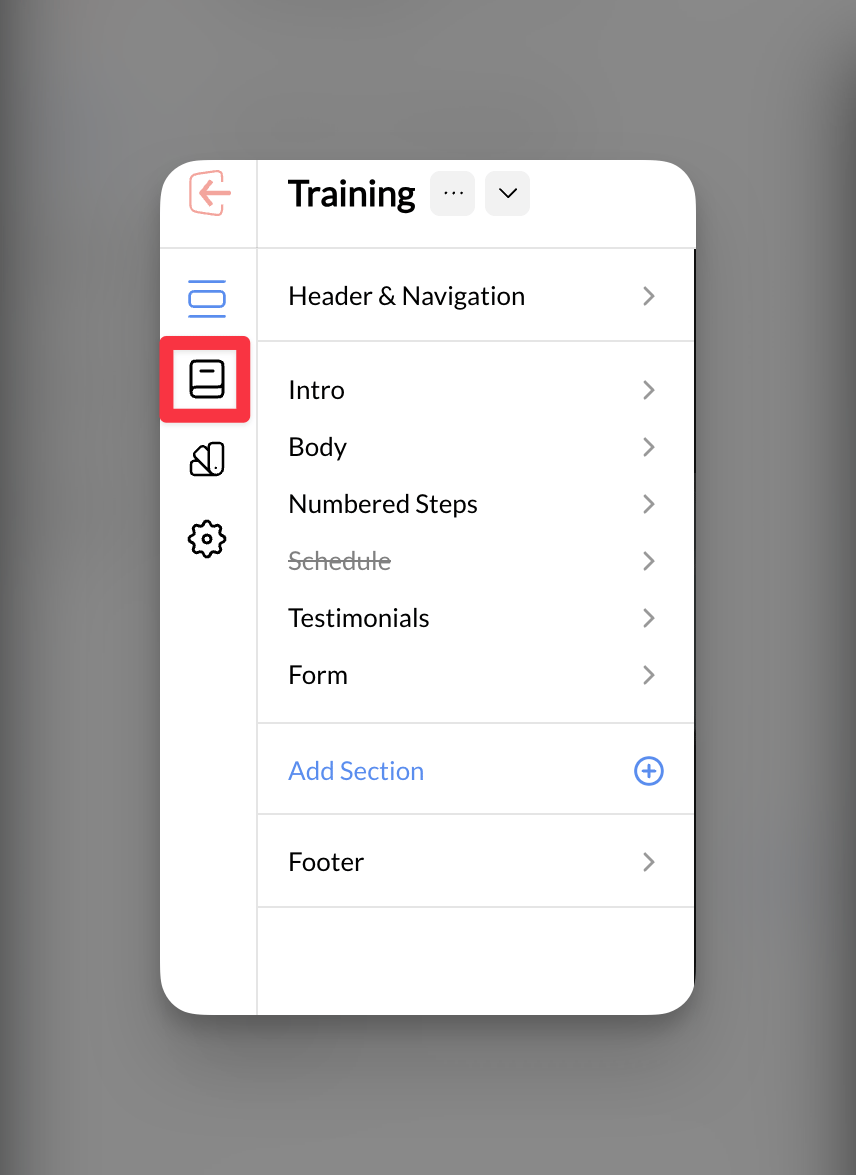
3
Add the Blog Post Archive section
Go back to your Blog page in the Website Builder. Delete the default CTA section, then click + Add Section and select Blog Post Archive from the Default category.Click Publish. This is the page that displays all your posts to visitors.
4
Add the blog to your site navigation
To make the blog discoverable, add it to your header navigation, footer, or both. You can also add a Default Blog Posts section to any page (such as your homepage) by clicking + Add Section and selecting Default Blog Posts — this will automatically display your latest posts wherever you place it.
Create blog posts
1
Add a new post
Inside the blog editor, click Add New Post. Enter a title for your post and click Create. CoachIQ will open an automatic template you can build on.
2
Add your content and publish
Add sections, text, images, and any other content to the post. When you’re ready, click Publish. The post will appear in your blog archive automatically.
3
Reuse a post layout (optional)
To keep a consistent visual style across posts, click Add New Post, give it a title, and click Create. Remove all the default sections, then click + Add Section, navigate to a previous post, and copy the sections over. This lets you match the layout of an existing post without rebuilding it from scratch.
Add featured images to posts
Featured images appear in the blog archive alongside each post title. Once you have a few images set, the archive displays in a three-column grid.1
Open Post Settings for each post
In the blog editor, open the post you want to update. Click Post Settings (typically in the top toolbar or sidebar).
2
Upload a featured image
Under Featured Images, upload the image you want to represent this post. Click Publish.Repeat for each post. Once images are set, the blog archive will display them in a three-column layout. Visitors can click Read More to open the full post.
Common questions
Why is the blog separate from my other pages?
Why is the blog separate from my other pages?
The blog editor manages posts as individual content pieces that feed into the archive automatically. Regular pages (like About or Services) are managed separately because they have a fixed place in your site structure, while blog posts are meant to grow over time and be listed together.
How do visitors find my blog?
How do visitors find my blog?
Add the Blog page to your header navigation, footer navigation, or both. You can also embed a Default Blog Posts section on any page (like your homepage) so recent posts are always visible without visitors having to navigate away.
Can I use the same visual layout for every post?
Can I use the same visual layout for every post?
Yes. Create your first post with the layout you want, then for each new post: click Add New Post, remove the default sections, click + Add Section, select your existing post, and copy the sections over.
Do blog posts help with SEO?
Do blog posts help with SEO?
Yes. Blog posts are one of the most effective ways to rank for local search terms. Writing about local sports events, school teams, area tournaments, and seasonal training topics attracts parents searching in your area. Each post is its own indexed page.
Related articles
Pages and Navigation
Create and organize pages in your website structure.
Working with Sections
Add, reorder, and customize sections on any page.
Settings and Design
Configure your blog archive page in Website Builder settings.
SEO Basics
How to use your blog strategically to rank in local search.