

Where to find this: sidebar → Settings → General → Brand kit
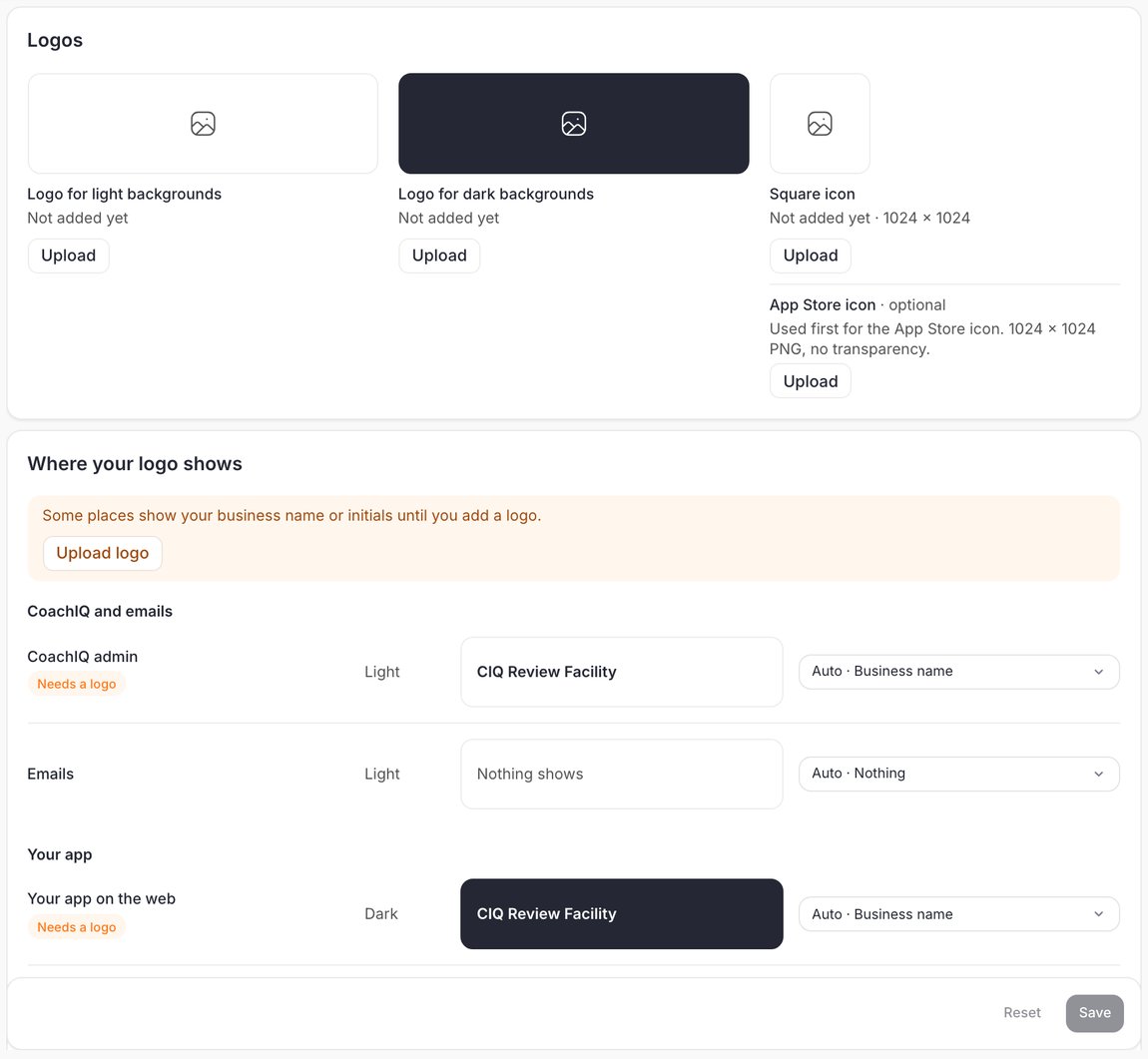
Logos
The Logos card has three uploads and one optional one:
Click Upload under a logo to add or replace it. If you pick several files quickly, the last one you picked is the one kept.
Where your logo shows
Below the logos, Where your logo shows lists every place your logo appears, with a preview on that place’s own background:- CoachIQ and emails: CoachIQ admin (the top left of the admin), Emails
- Your app: Your app on the web, Sign-in and group picker, Your app on iPhone and Android, App icon, App Store icon
- Website: Website header, Website footer
- A logo you set in the website builder’s header or footer still wins on that website. The website row says so and offers Use Brand Kit to go back to the Brand Kit logo.
- A logo you pick in the email composer still wins for that email.
- If your organization has several programs, each program’s notification and invite emails show that program’s own logo once its Brand Kit has one.
- The iPhone and Android apps pick up your choices with the next app update.
- If you’ve never used this list, every place keeps showing what it showed before.
Colors
- Theme: Light or Dark.
- Primary: buttons and highlights.
- Secondary: a second brand color some sections use.
- Button text: the text color on your buttons. If it would be hard to read on your primary color, a warning shows under it. The warning doesn’t stop you saving.
Fonts
Heading font and Paragraph font set the type across your website. Click a font box to open the list, pick a font, and the Preview under it updates. A font name can only use letters, digits, spaces and hyphens, up to 60 characters. Names with an apostrophe or other symbols, such as “Ma’am Script”, are refused with a short message, because the website couldn’t show them. Spaces at the start or end are removed. Your app keeps its own app font. The Brand Kit fonts apply to your website.Style
- Media style: Rounded or Square corners on photos and videos.
- Shadows: a soft shadow on cards and buttons.
Save your Brand Kit
- Make your changes. Save turns on once something has changed. Reset puts back what was saved.
- Click Save, then choose:
- Save and publish website: your app updates and your website goes live with the new branding.
- Save only: your app updates, and the website keeps the changes waiting until you publish. The message that confirms the save has a Publish button.
How your website uses the Brand Kit
Your website’s Design panel follows the Brand Kit. If you change a setting there, such as the primary color, that setting shows Changed for this website, and it no longer follows the Brand Kit. Click Use Brand Kit under it to follow the Brand Kit again. See Settings & Design.Related articles
Website Settings & Design
Change design settings for your website only.
Favicon & Share Images
The browser-tab icon and the picture shown when your site is shared.