

Setup time: 2 minutes
Cost: Completely free (no limits)
What you’ll see: Heatmaps, session recordings, and user behavior insights
Cost: Completely free (no limits)
What you’ll see: Heatmaps, session recordings, and user behavior insights
What is Microsoft Clarity?
Microsoft Clarity is a free tool that shows you exactly how visitors interact with your coaching website through session recordings and heatmaps. Watch real visitors navigate your site, see where they click, and identify what confuses them - all without slowing down your website.Get your Clarity tracking code
1
Create a Clarity account
- Go to clarity.microsoft.com
- Click Sign up (top right)
- Sign in with Microsoft, Google, or Facebook account
2
Set up your project
- Click New project
- Enter your website name (e.g., “CoachIQ Website”)
- Add your website URL (e.g.,
yourcoaching.coachiq.io) - Select Sports as your category
- Click Create
3
Get your tracking code
- Go to Settings (gear icon)
- Click Setup
- Select Install tracking code manually
- You’ll see a script block — find the URL inside it that looks like:
https://www.clarity.ms/tag/XXXXXXXXX- Copy that full URL (including
https://)
Add Clarity to CoachIQ
1
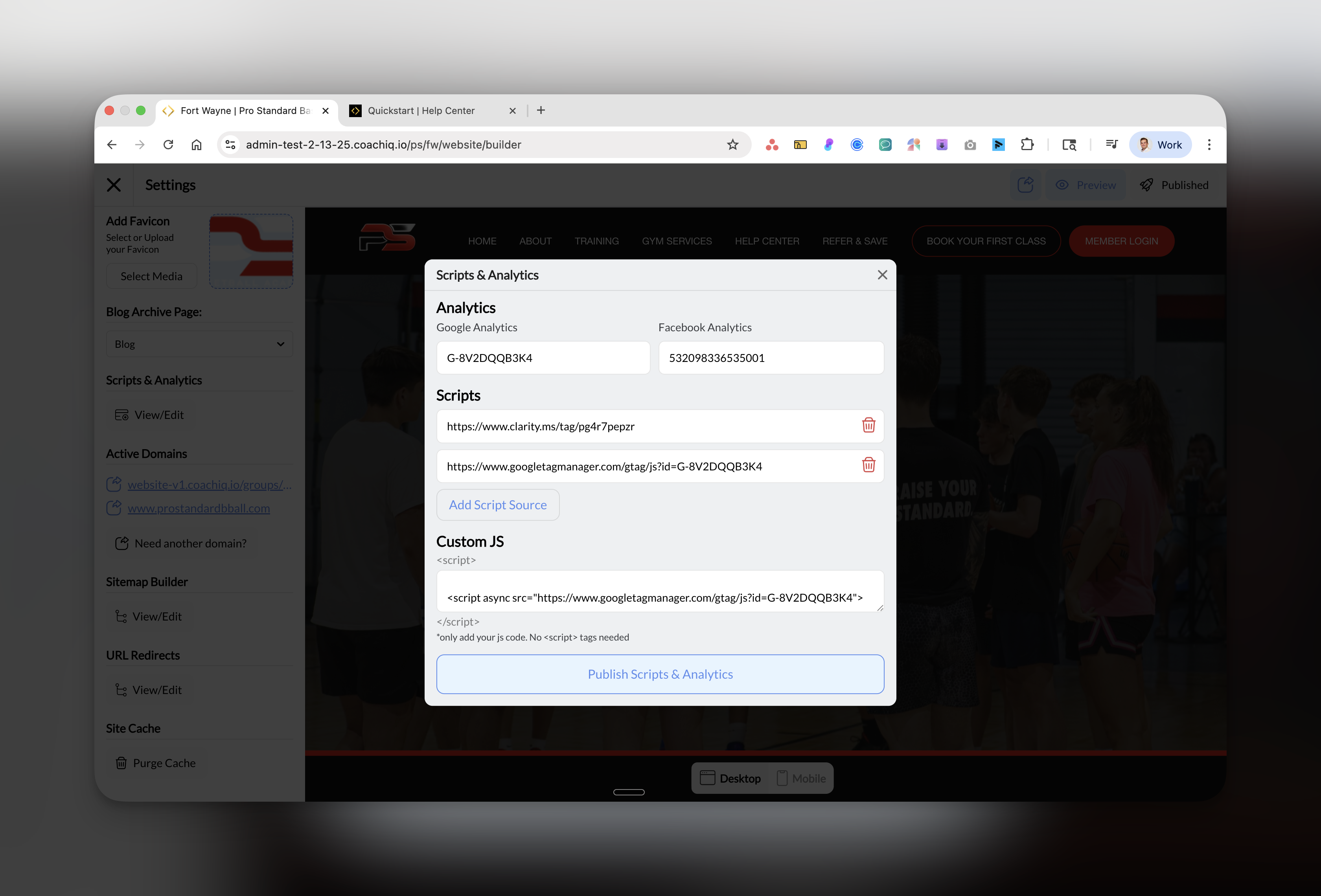
Open Scripts & Analytics
- Go to Dashboard → Website Builder
- Click Scripts & Analytics in the left sidebar
2
Add Clarity script
- In the Scripts section, click Add Script Source
- Paste your complete Clarity URL: https://www.clarity.ms/tag/XXXXXXXXX
- You’ll see it added to the Scripts list
3
Publish your changes
Click the blue Publish Scripts & Analytics button at the bottom.
Success! Clarity is now recording sessions. First recordings appear in 2-3 hours.
Verify Clarity is working
1
Check Clarity dashboard
- Return to clarity.microsoft.com
- Open your project
- Look for “Clarity is installed correctly” message
- Visit your website in another tab
- Within 2 hours, you’ll see your first session recording
What Clarity shows you
Heatmaps
Visual maps showing where visitors click, scroll, and move their mouse:- Click maps: See most/least clicked elements
- Scroll maps: Discover how far visitors scroll
- Dead clicks: Find broken or confusing elements
Session recordings
Watch anonymous recordings of real visitor sessions:- See exactly how users navigate
- Identify confusion points
- Understand why visitors leave
- Find broken features or links
Insights dashboard
Automatic detection of issues:- Rage clicks: Frustrated rapid clicking
- Dead clicks: Clicks on non-clickable elements
- Excessive scrolling: Users lost on page
- Quick backs: Visitors immediately leaving
How coaches use Clarity
Find conversion killers:
- Watch where visitors abandon booking forms
- See if CTAs are being missed
- Identify confusing navigation
- Spot mobile usability issues
Optimize for bookings:
- Filter recordings to “didn’t convert” sessions
- Watch 10 recordings to find patterns
- Fix the most common issues
- Test and measure improvements
Common questions
Is Clarity really free forever?
Is Clarity really free forever?
Yes, Microsoft Clarity is 100% free with no limits on sessions, websites, or features. There’s no premium version - everything is free.
Does it slow down my website?
Does it slow down my website?
No, Clarity uses asynchronous loading and Microsoft’s global CDN. It has virtually no impact on site speed.
Can visitors see they're being recorded?
Can visitors see they're being recorded?
No, recordings are anonymous and invisible to visitors. Consider mentioning it in your privacy policy for transparency.
How long are recordings stored?
How long are recordings stored?
Clarity stores recordings for 30 days. You can delete them anytime or disable recording while keeping heatmaps active.
Best practices
What to look for in recordings:
- Booking abandonment: Why visitors don’t complete bookings
- Form issues: Fields causing confusion
- Mobile problems: Buttons too small or elements overlapping
- Navigation confusion: Visitors searching for information
- Price sensitivity: Quick exits after seeing pricing
Heatmap insights:
- Elements with no clicks might be poorly designed
- Heavy clicking on non-links means visitors expect interactivity
- Short scroll depth suggests content isn’t engaging
- Mobile vs desktop patterns often differ significantly
Troubleshooting
Take action on insights
Watch first recordings
Check heatmaps
Fix dead clicks
Optimize mobile
Next steps
After installing Clarity:- Wait 24 hours to gather initial data
- Watch 10 recordings of non-converting visitors
- Create a list of top 3 issues to fix
- Make improvements and measure results
Coach insight: Most coaches discover their booking button is hard to find on mobile. Check your mobile heatmaps first - that’s where most quick wins hide.