

Where to find this: Dashboard → Website Builder → Select any page
What you’ll accomplish
Learn how to add new sections to your coaching website, reorder them for the best user flow, temporarily hide sections, and remove sections you no longer need.Adding new sections to your website
1
Navigate to Website Builder
From your dashboard, select Website Builder and choose the page you want to edit.
2
Click 'Add Section'
Scroll to where you want to add a new section and click the + Add Section button.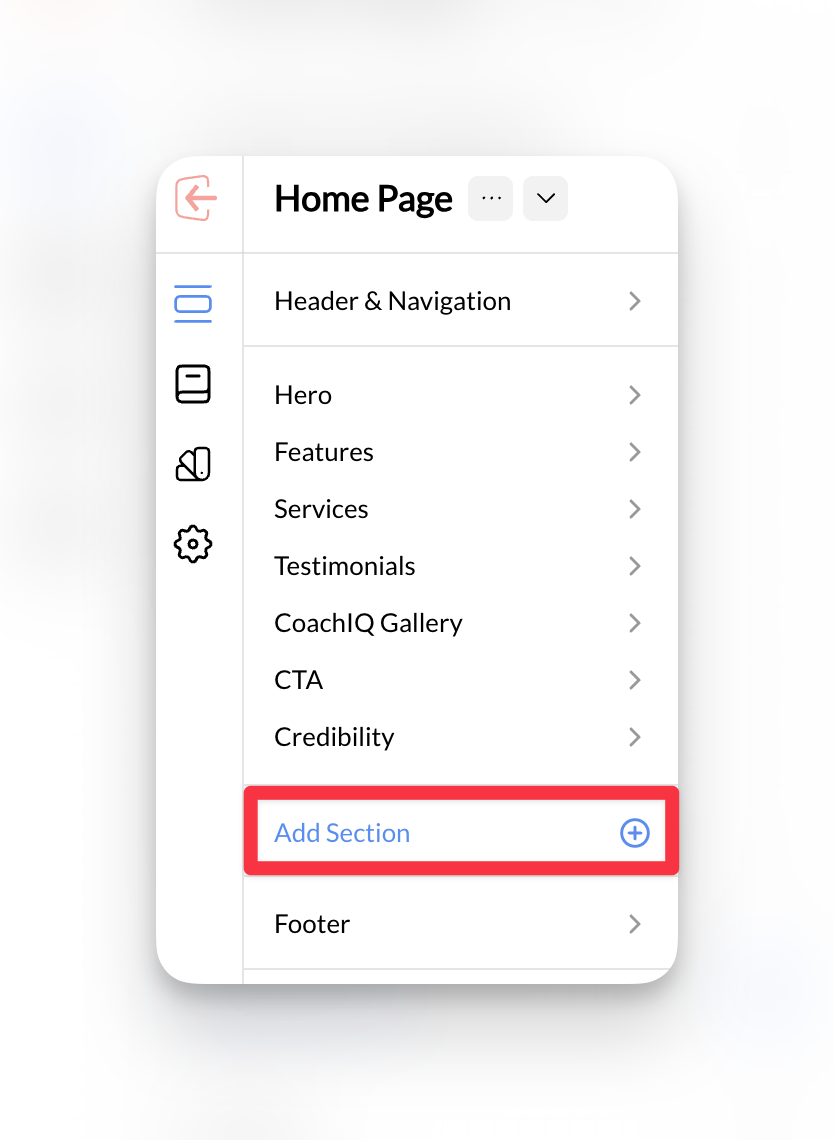
3
Choose sections from the gallery
Add Section opens a visual gallery with previews. Browse Published sections, Previous pages, or Default templates, then select the sections you want. Published custom sections are available here, too.The action button shows how many sections you selected. Choose Add to page to insert them, then edit their content. Closing the gallery without adding leaves your page unchanged.
Reuse a custom section
Open Add Section → Previous pages to find sections already used on your site, or browse Published sections for published custom templates. Select the section, add it to the page, and replace its text, images, and linked products or schedulers with the content for that page. A section copied from Previous pages arrives with its saved headline, image, button text and link. AI-generated sections are custom sections too: use their editable text, image, icon, and link fields to adapt them to your page. Custom sections expose different editable fields depending on their design. Review the page preview and the published result after changing a section.Choose an icon
When a section exposes an icon field, open its icon picker and search the library or browse its categories. Choose the icon and its available color setting. The categories offered can vary by section; an icon field may be limited to social icons, for example.Choose which part of a photo or video stays visible
When a section crops a photo or video to fit a card or gallery tile, you can choose which part stays in view. Once an image or video is added to a section, a Focus setting appears under it:- Auto (the default) keeps the centered crop
- Top, Bottom, Left, Center or Right move the crop toward that edge
- For finer control, click or drag on the preview under the choices to place the focus point anywhere. The arrow keys nudge it, and a short line under the preview shows where the point sits
Remove an optional image or video cover
Some section images are optional, such as background images and video cover images. These show a Remove button, along with a thumbnail of the current image, including images that came with the template. Required images don’t have it. Click Remove, then Publish. The image stays removed on desktop and mobile, and no broken image icon is left behind. The rest of the section is untouched, and the file stays in your Media Hub.Save before leaving a page
Use Publish to save page changes and make them visible on your site. Check the published page as well as the editor preview.- When the button says Publish: after any real edit, including changes in the Design panel. Just opening a section, the header, the footer or Page Settings doesn’t count as a change.
- Leaving with unsaved changes: the builder asks before you leave, including when you go to Blog. Choose Stay to keep your draft.
- If a save fails: your edit stays on screen and the button still says Publish, so you can try again. If a published change doesn’t reach the live site on the first try, CoachIQ keeps retrying in the background.
- If a page won’t load: you see Couldn’t load this page with Retry and Back to dashboard. There’s no Publish button on that screen, so the saved page can’t be overwritten.
Reordering sections on your page
You can change the order of sections to create the perfect flow for your visitors.1
Locate the section to move
Find the section you want to reorder in your page layout.
2
Use the section controls
Look for the reorder controls next to the section name in the left sidebar by hovering over the section with your mouse.
3
Move to desired position
Click and drag the six dot icon to move the section up or down to your preferred position.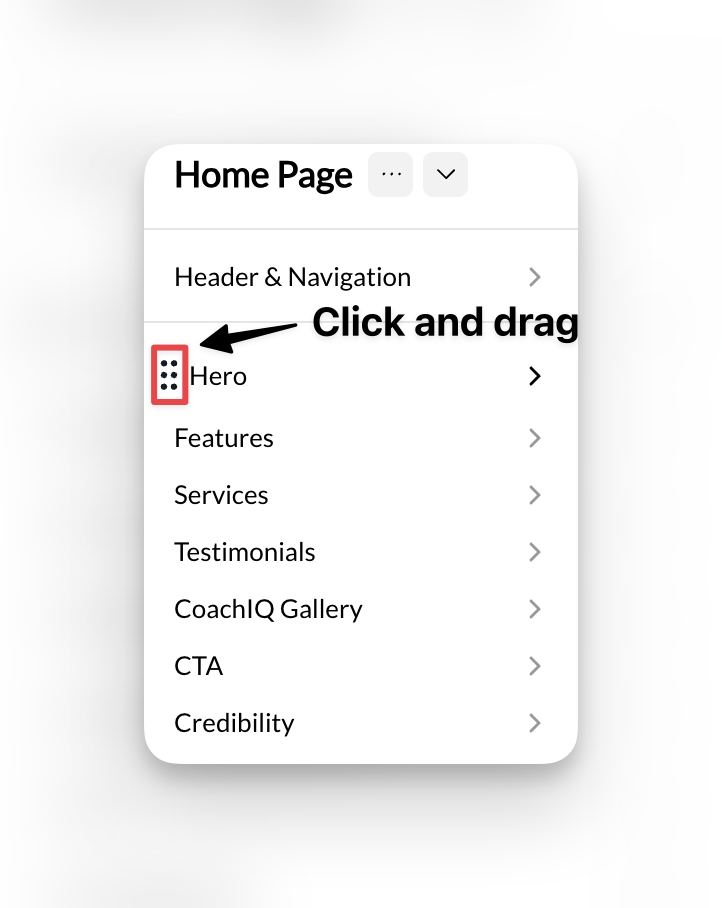
The section will immediately move to its new position and you can preview the change.
Hiding sections temporarily
Sometimes you want to keep a section configured but temporarily hide it from visitors.1
Select the section
Click on the section you want to hide in your Website Builder.
2
Toggle the Hide option
Look for the Hide toggle in the section settings panel and switch it on.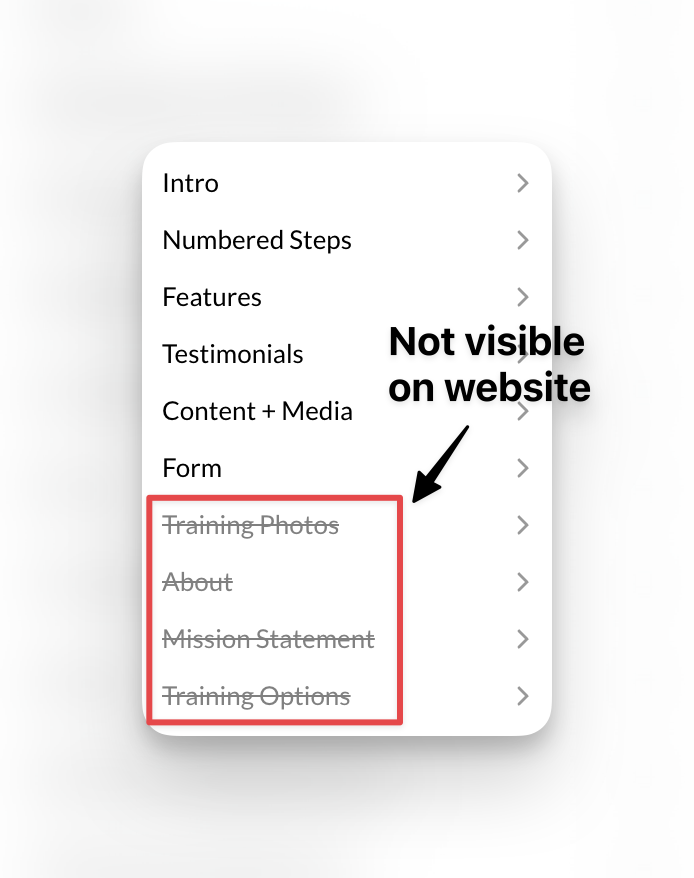
Hidden sections remain in your Website Builder but won’t appear to visitors on your live site. This is perfect for sections you’re still working on or seasonal content.
3
Unhide when ready
To make the section visible again, simply toggle the Hide option back off.
Removing sections permanently
1
Select the section to remove
Click on the section you want to delete in your Website Builder.
2
Find the delete option
Look for a trash/delete icon or “Remove Section” option in the section controls.
3
Confirm deletion
Confirm that you want to permanently remove the section and all its content.
The section will be immediately removed from your page.
Common questions
How many sections can I add to a page?
How many sections can I add to a page?
There’s no strict limit on the number of sections you can add, but keep user experience in mind. Pages that are too long may lose visitor attention.
Can I copy sections between pages?
Can I copy sections between pages?
Use Add Section → Previous pages to reuse a section on another page, then update its text, images, and links.
Can I undo removing a section?
Can I undo removing a section?
No, removing a section permanently deletes it. If you might need the section later, use the Hide option instead.
Pro tips
Related articles
- Section Styling and Layout - Customize the visual appearance of your sections
- Editing Section Content - Learn how to edit text, images, and content within sections
- Section Types - Explore the specific features available for each section type