Quick navigation: Dashboard → Athlete Portal → Edit → Schedule
What you’ll accomplish
Get your schedulers live in the athlete app so athletes can browse and book sessions. This is the final step after creating your schedulers—making them accessible to athletes.Success: Schedulers appear in athlete app, organized clearly, ready for booking.
The 3-step process
1
Navigate to Athlete Portal Builder
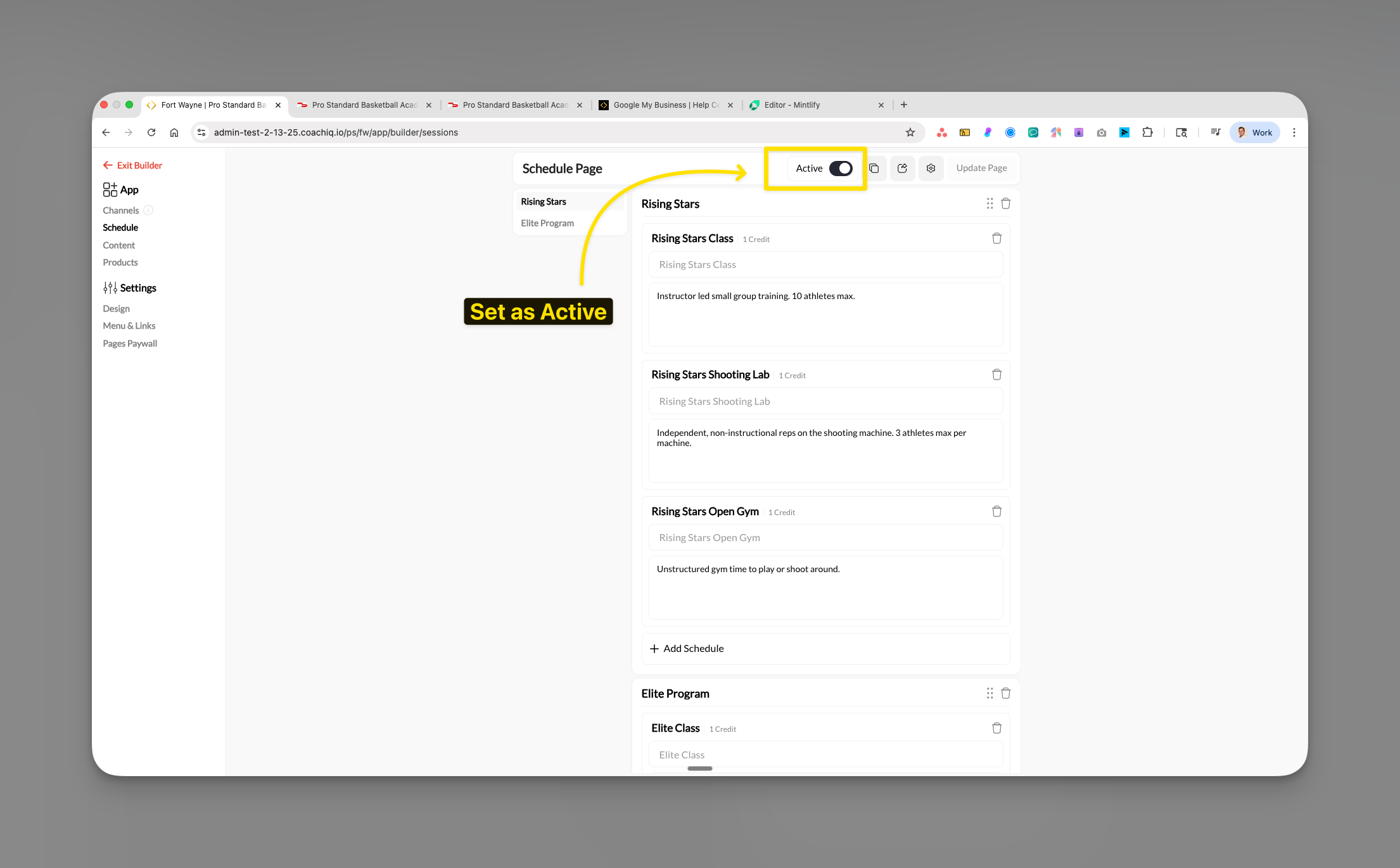
Dashboard → **Athlete Portal **→ Edit → Schedule tabToggle the Active switch ON to enable scheduling in the athlete portal.

2
Add your schedulers
- Click + Add Section (create categories like “Private Training” or “Group Classes”)
- Click + Add Schedule within a section
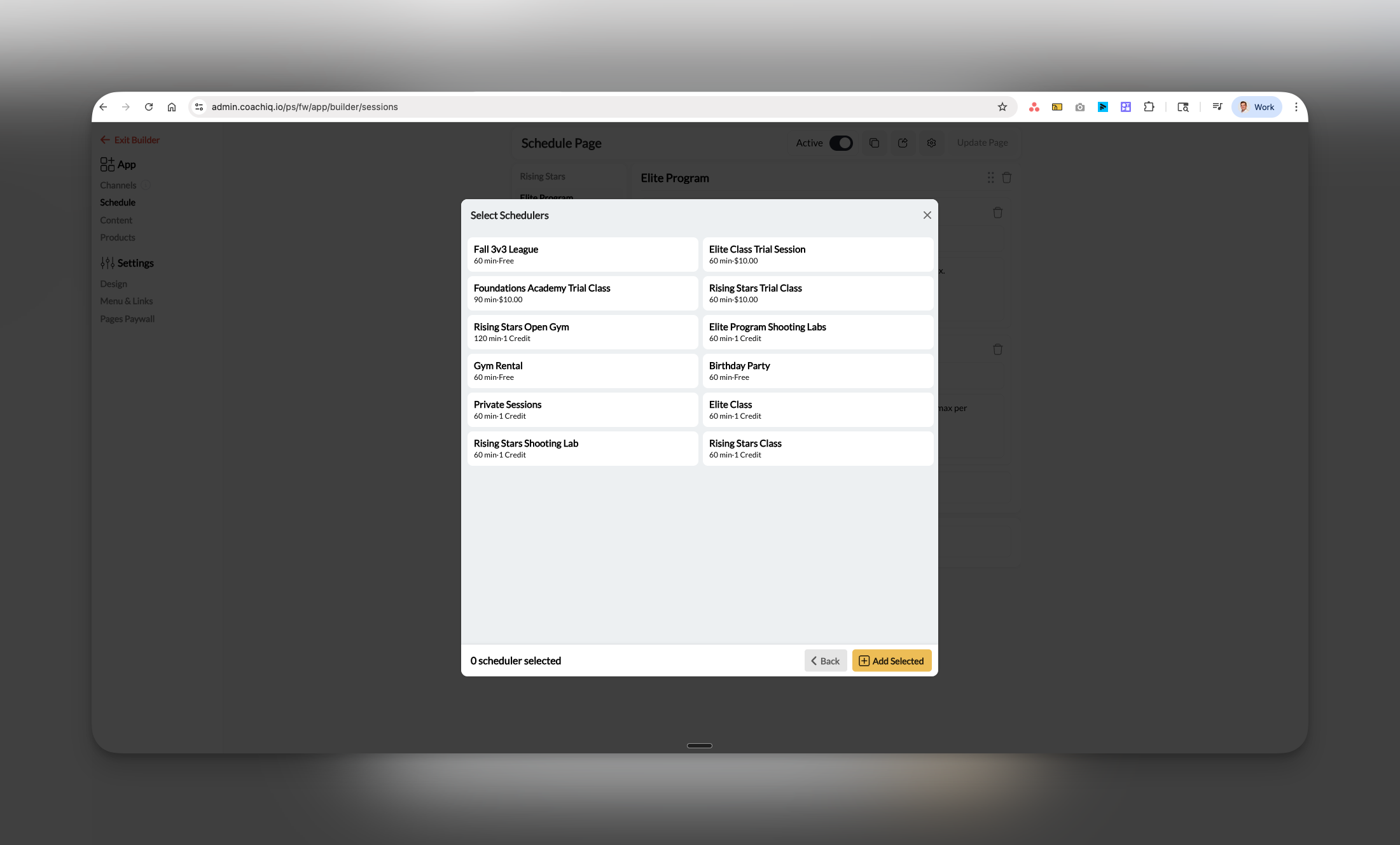
- Select schedulers from the modal popup
-
Click Add Selected

Only see schedulers you’ve already created. If a scheduler isn’t in the list, create it first in Schedule → Schedulers.
3
Preview and publish
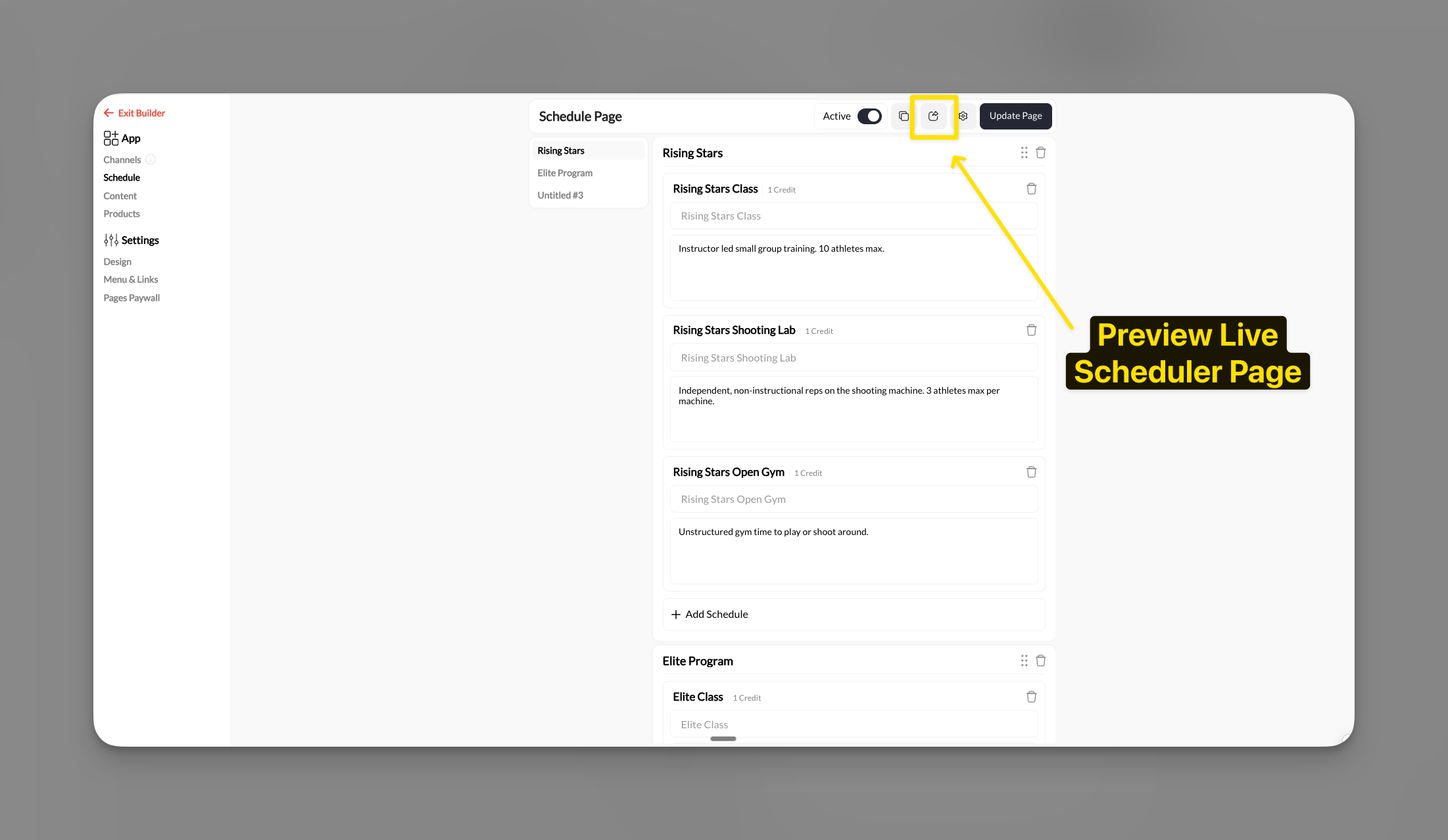
Click the Preview button to see the athlete view.Verify:
- Sections appear in the right order
- Scheduler names are clear
- Credit costs display correctly

Done! Athletes can now see and book your schedulers.
Organization best practices
Create sections by:- Service type: “Private Training” | “Group Classes” | “Assessments”
- Skill level: “Beginner” | “Intermediate” | “Advanced”
- Program: “Rising Stars” | “Elite Training” | “Competition Prep”
- Location: “Main Gym” | “North Studio” | “Virtual Sessions”
- Most popular schedulers at the top
- Free/trial sessions first (lower barrier to entry)
- Premium services last (after athlete is engaged)
- 3-5 sections maximum (less overwhelming)
- 2-5 schedulers per section (easy scanning)
- Short section names (2-3 words)
Common questions
Scheduler created but not appearing in app?
Two-step requirement:
- Create scheduler (Schedule → Schedulers) ✅
- Add to athlete portal (Athlete Portal → Schedule) ← Don’t forget this step!
Can I customize how schedulers appear?
Yes! Click on any scheduler in the app builder to edit:
- Display title (different from scheduler name)
- Description for athletes
- Order within section
Do all athletes see the same schedulers?
Yes, currently all athletes see the same scheduler list. To restrict access:
- Use scheduler settings (capacity, prerequisites)
- Create member-tier-specific schedulers
- Use different booking links for different groups
How do I remove a scheduler from the app?
Athlete Portal → Schedule → Click dots menu (⋮) on scheduler → DeleteNote: This only removes it from athlete view—the scheduler still exists in your system.
Quick troubleshooting
Athletes can’t book even though scheduler is in app:- Check scheduler is Active (Schedule → Schedulers → Edit scheduler)
- Verify availability is configured
- Confirm athlete has required credits/payment method
- Check if capacity is full
- Hard refresh browser (Ctrl+Shift+R or Cmd+Shift+R)
- Check in incognito mode
- Verify you clicked outside fields to save changes
- Credits are set in scheduler settings, not app builder
- Go to Schedule → Schedulers → Edit scheduler → Payment section
Related articles
Full App Builder Guide
Complete guide to customizing athlete app schedule display
Creating Schedulers
Create schedulers before adding them to app
Scheduler Settings
Configure capacity, limits, and permissions
Need detailed customization help? See the complete Athlete Portal scheduling guide for advanced organization strategies, troubleshooting, and best practices.