

Required for: Coaches transferring from MindBody to CoachIQ
Before you begin
You’ll need:
- Owner or Manager access to your MindBody account
- The CoachIQ transfer email: transfers@coachiq.io
Add CoachIQ as a staff member
1
Open your MindBody staff page
Log in to your MindBody account and navigate to the Staff section from the main menu.Depending on your MindBody version, this may be under Settings → Staff or accessible directly from the side navigation.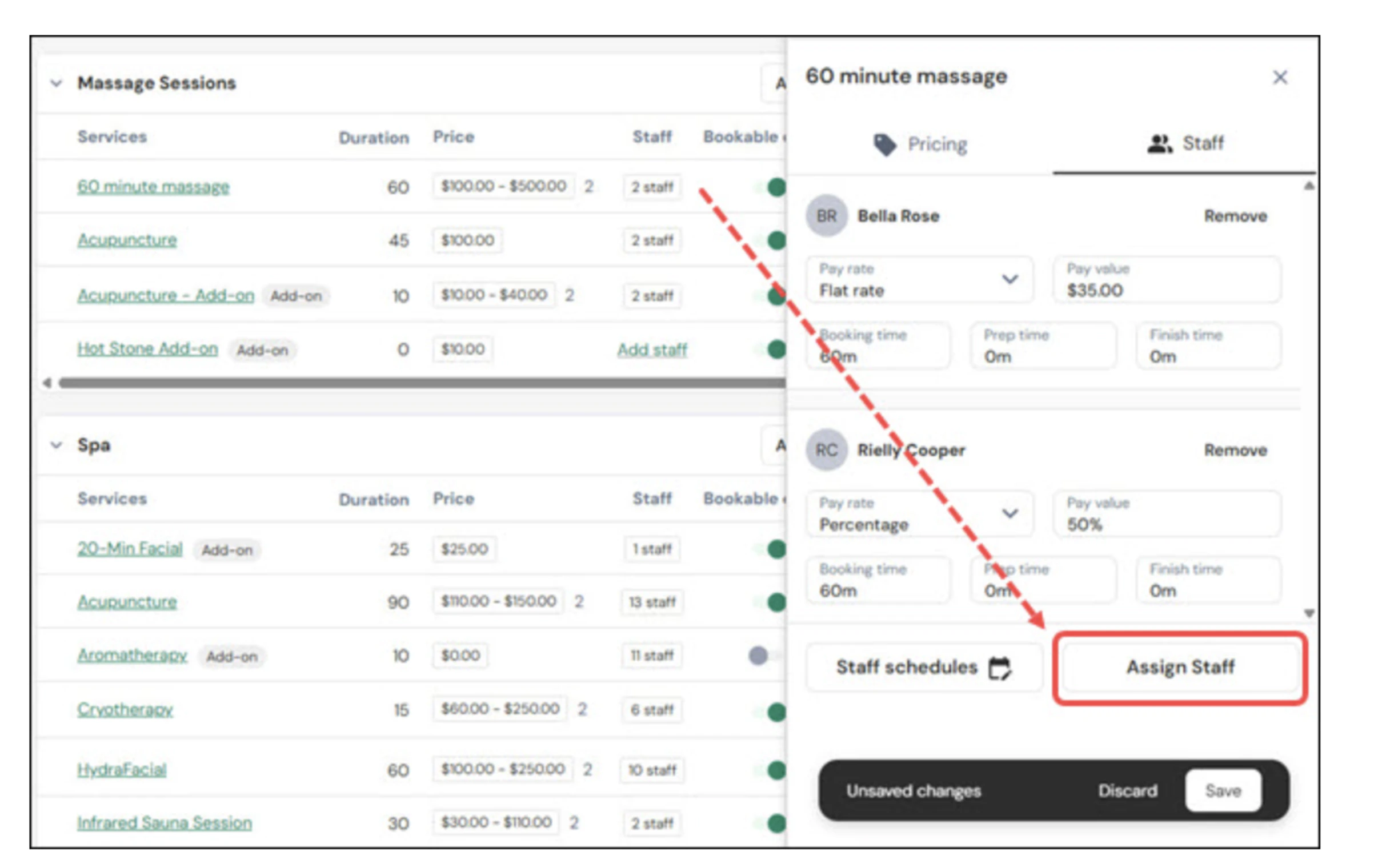
2
Click Add Staff Member
Click the Add Staff Member button to create a new staff profile.Enter the following details:
- First Name: CoachIQ
- Last Name: Transfers
- Email: transfers@coachiq.io
Using a shared transfer email means our team can pick up your migration immediately — no waiting on a specific person.
3
Set permissions
Assign the staff profile a permission level that allows read access to your account data. A Manager permission group works best.CoachIQ needs access to: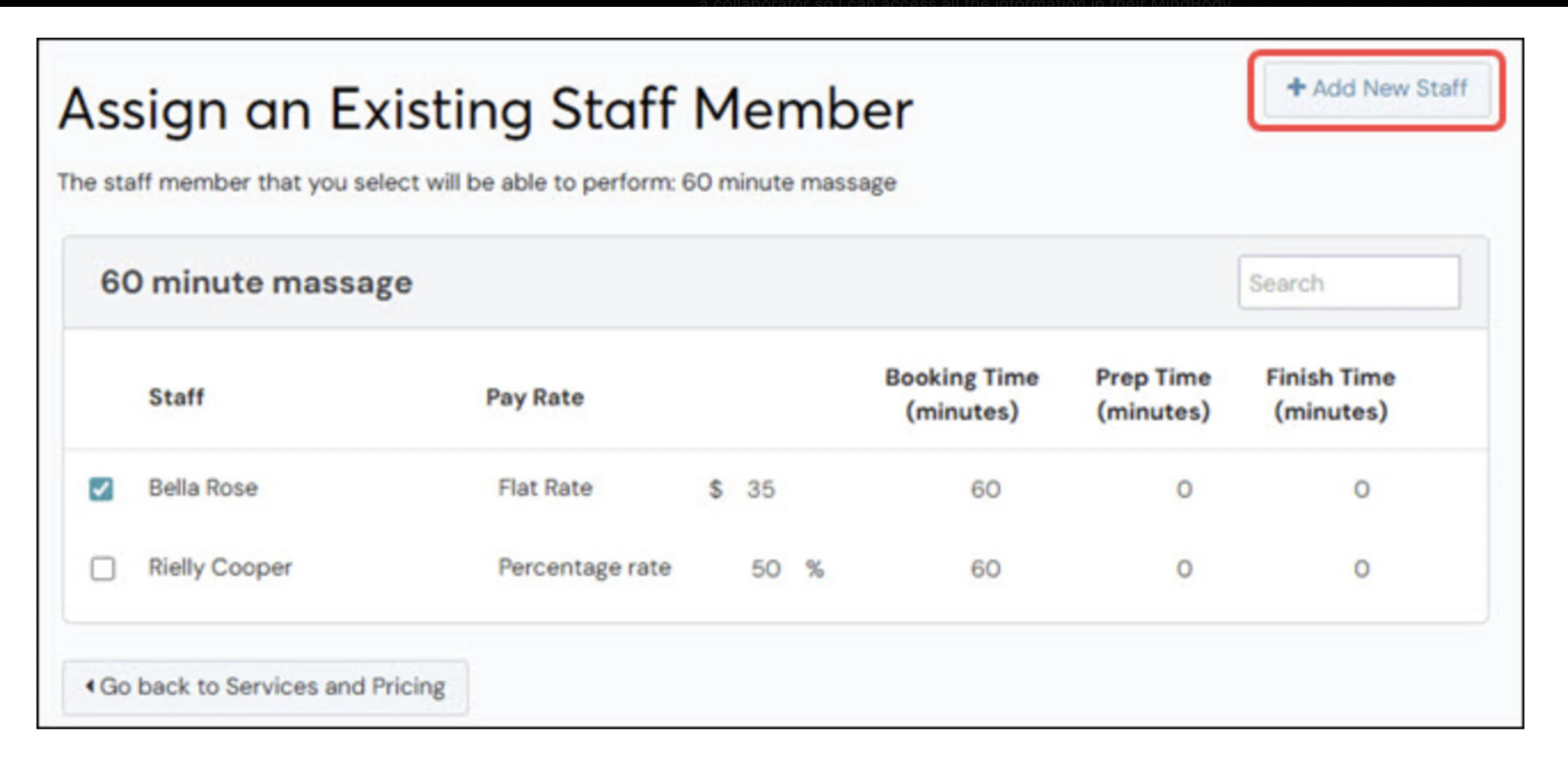
- Client list and contact information
- Memberships and contracts (subscriptions)
- Payment and billing history
- Class and appointment schedules
- Reports (for data export)
4
Save and notify CoachIQ
Click Save to create the staff profile.Then let your CoachIQ account manager know that access has been granted — either through your existing chat or by emailing info@coachiq.io.
Done! CoachIQ will log in and begin reviewing your data for migration, usually within 1 business day.
What CoachIQ does with this access
Once we’re in your MindBody account, our team will:- Review your client list — names, emails, phone numbers, and any custom fields
- Document memberships and contracts — active subscriptions, pricing, billing schedules
- Export class and appointment history — so we can recreate your schedulers in CoachIQ
- Map your data to CoachIQ — match MindBody products to CoachIQ equivalents
We only read your data — we will never modify, delete, or change anything in your MindBody account.
Common questions
What permission level should I give CoachIQ?
What permission level should I give CoachIQ?
Manager is the easiest option — it gives broad read access without giving full owner control.If you’d prefer more restrictive access, create a custom permission group with access to:
- Clients (view)
- Reports (view)
- Appointments/classes (view)
- Memberships/contracts (view)
Can I remove CoachIQ's access after the transfer?
Can I remove CoachIQ's access after the transfer?
Yes — and you should. Once your migration to CoachIQ is complete, simply go back to Staff, find the CoachIQ Transfers profile, and deactivate or delete it.Your CoachIQ account manager will let you know when the transfer is complete and it’s safe to remove access.
Will this affect my current MindBody operations?
Will this affect my current MindBody operations?
No. Adding a staff member doesn’t change anything about how your MindBody account works. Your clients, schedules, and billing continue as normal. CoachIQ’s access is read-only — we’re just looking at your data to plan the migration.
What if I don't have owner access to MindBody?
What if I don't have owner access to MindBody?
Only owners and some manager-level accounts can add staff members. If you don’t have the right permissions:
- Ask the account owner to add CoachIQ using the steps above
- Or contact MindBody support to upgrade your access level
I use a different platform — not MindBody
I use a different platform — not MindBody
No problem. Reach out to your CoachIQ account manager or email info@coachiq.io and we’ll provide specific instructions for your platform.
What happens next
After you grant access, your CoachIQ team will:- Log in and audit your data — usually within 1 business day
- Create a migration plan — map your MindBody setup to CoachIQ
- Import your clients — transfer contacts, tags, and relevant history
- Rebuild your schedule — recreate your services as CoachIQ schedulers
- Set up subscriptions — connect recurring billing through Stripe
- Go live — confirm everything looks right and you’re ready to switch
Need help? Reach out to your CoachIQ account manager or email info@coachiq.io. You can also book an Office Hours call and we’ll walk through this together.