

Where to find this: Payments → Coupons → Create coupon (Limits, Automatic member discount, Products)
How clients use coupons
Share the code exactly as it shows in the Coupon column: in a text, an email, a social post or on your website. Clients enter it at checkout, including in the product payment pop-up and in checkout embedded on your website.1
Client selects product
Client goes to booking page or product purchase and selects what they want.
2
Client enters coupon code
At checkout, client finds “Coupon Code” or “Promo Code” field and enters code.
3
Discount applies
The payment buttons wait until the new total appears, so the charge always matches the total shown. The applied coupon sits in one row with Change and Remove; removing it restores the original price.Client sees: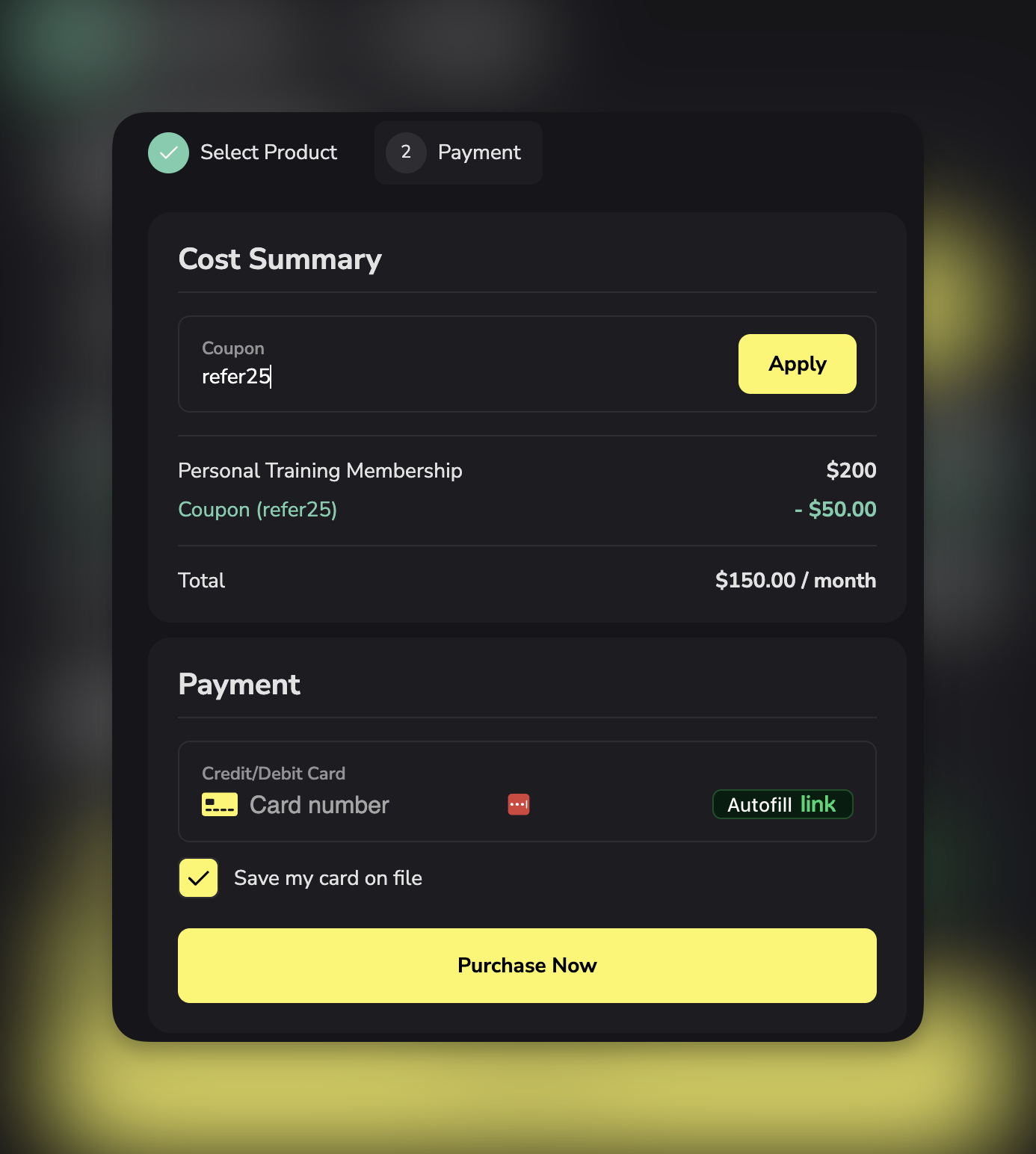
- Original price (strikethrough)
- Discount amount, in dollars and cents (for example $20.00, - $5.00, $15.00)
- New total, labeled Due today when it differs from the list price. A coupon larger than the price totals $0.00, never a negative amount.
4
Client completes purchase
Client pays discounted amount and receives product/credits. The confirmation shows Paid today with the amount actually charged.
Limits and dates
Redemption limits:- Unlimited uses (default)
- Limited total uses (50, 100, 500, etc.)
- One use per client (requires sign-in)
- First purchase only (no previous purchases in this business, including free orders)
- An expiration date for new redemptions
- A minimum order amount
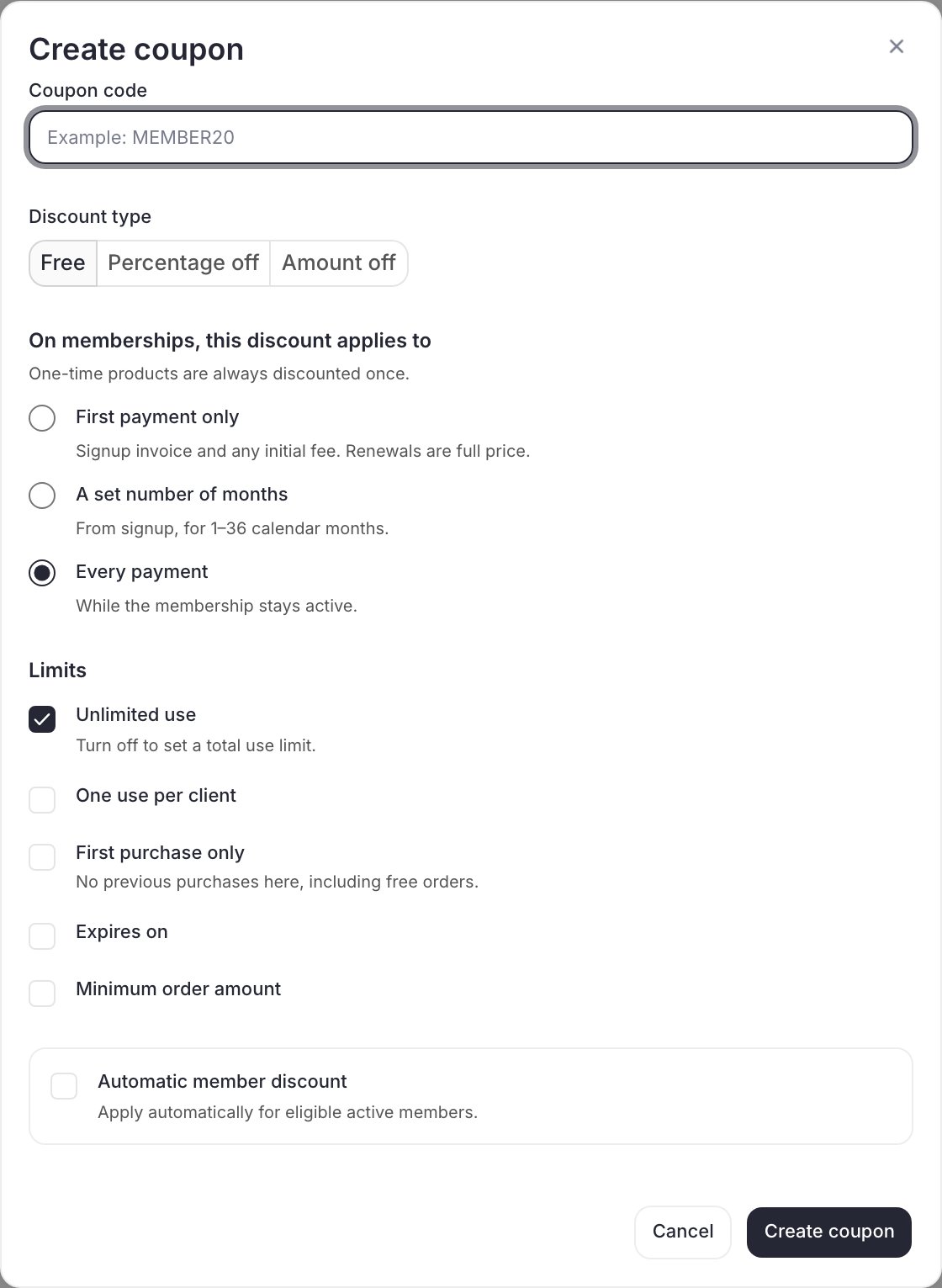
Limits control who can use the code and when. Automatic member discount turns it into a standing member perk.
Choose which products a coupon covers
Under Products, pick one:- All products: covers every product, including ones you create later. Use Except to leave some out.
- Selected products: covers only the products you pick. New products aren’t covered until you add them.
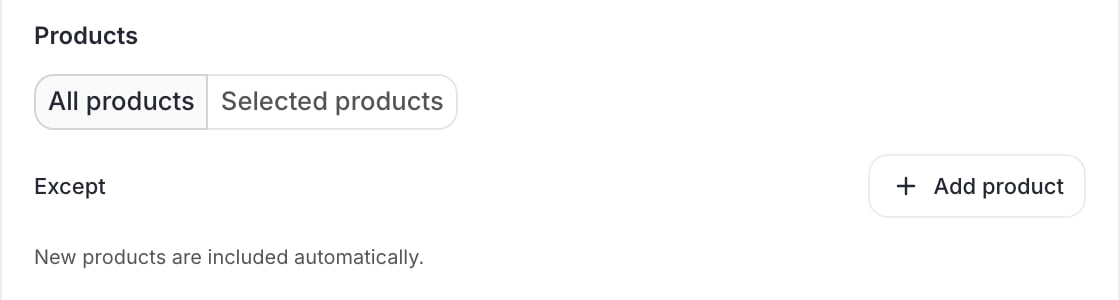
All products with an Except list. New products are included automatically.
Leave products out of an All products coupon
Use this when a discount should cover almost everything, for example 20% off all training for team members, but not team registration fees.1
Choose All products
In Create coupon, under Products, select All products.
2
Add the products to leave out
Next to Except, select Add product. Search, tick the products to leave out, then select Done. Each one shows under Except, and you can remove them one at a time.
3
Create the coupon
Select Create coupon. Left-out products show their full price at checkout, with no discount line.
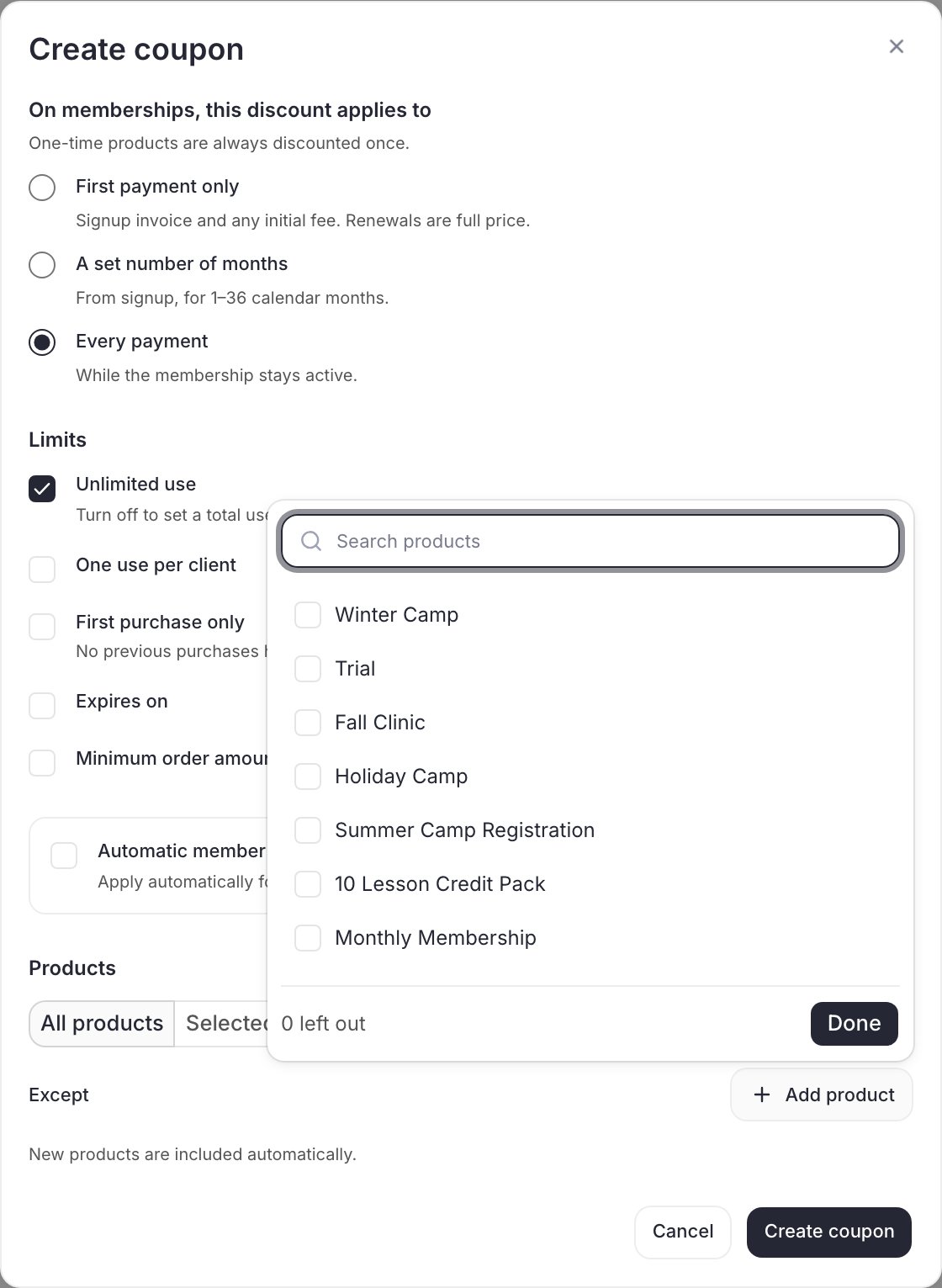
Search and tick the products to leave out.
Member discounts
Member discounts are automatic: anyone who holds a specific membership pays less for your other products, with no code to enter. Set them up when facilities want team members to get member pricing on camps, clinics, rentals, or add-on memberships. How it works- Open Payments → Coupons → Create coupon and set the discount.
- Turn on Automatic member discount and choose the qualifying memberships. Anyone with one of them active gets the discount.
- Choose which products it applies to: selected products, or all products. With all products, use Except to leave some out, such as team fees. The list can include other memberships and one-time products.
- Select Create coupon. From then on, when an active member checks out on one of those products, the discount is applied automatically and shown in the price breakdown. This includes a parent paying for an athlete who holds the qualifying membership, on product checkout and session booking.
See member pricing in the product builder
When an All products member discount covers a product, the product builder shows a line under the price, for example “Members pay $160: MEMBER20ALL covers all products”, with a Leave out button. Select Leave out and the line changes to “Left out of MEMBER20ALL: members pay full price”, with Include to undo it. The line only shows when checkout would actually give the discount. A member discount that has reached its use limit doesn’t show a member price. If checkout would refuse the discount, for example a percentage member discount on a membership with a down payment, the builder says so. A product you haven’t created yet shows the line without the button until you save it.Coupon or member discount?
See how a coupon is doing
Each coupon in the Coupons list shows how many times it has been used. A use counts once the purchase goes through, so a bank payment that’s still processing shows up after it clears. Use the counts to see which codes families actually use, retire the ones nobody uses, and decide whether a discount is worth running again.Best practices
Code naming:- Make codes memorable (SPRING25, not XJ7H2K9)
- Include discount in name when possible (25OFF)
- Match campaign (REFER20 for referral program)
- Keep them short (under 15 characters)
- Test different amounts to find sweet spot
- Too small: Doesn’t motivate action
- Too large: Erodes margins unnecessarily
- Common sweet spot: 20-30% for percentage, $25-$50 for amount
- Limited time creates urgency (48-hour sale)
- Seasonal alignment (SUMMER, NEWYEAR)
- Event-based (GRANDOPENING, ANNIVERSARY)
- Clearly state terms (expires, limits, restrictions)
- Make codes easy to find and share
- Remind clients of expiration dates
- Celebrate redemptions (thank clients who use codes)