

Quick check: Credits are added immediately after successful checkout. If they’re missing, there’s usually a simple explanation.
Where athletes see their credits
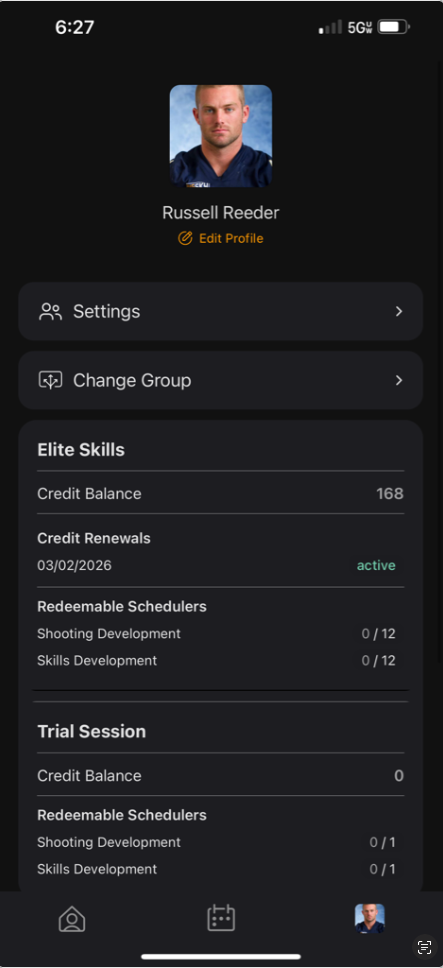
Athletes can view their credit balance by tapping their profile icon in the app. This shows:- Credit balance for each product
- Renewal date (for subscriptions)
- Which schedulers each credit type works for
Common reasons credits don’t show
1. Wrong product type purchased
Only products configured with credits added upon purchase will add credits to athlete accounts. To verify:- Go to Products in your dashboard
- Select the product the athlete purchased
- Confirm the product type includes credits
2.d Credits manually adjusted
If you or another coach manually adjusted the athlete’s credit balance, it may override their purchased credits.- Check the credit history:
- Navigate to People →Clients → [Athlete/Parent Name] → Credits
- Review the credit activity log for manual adjustments
3. Expired credits removed
Credits have expiration dates based on your product settings. Expired credits automatically revoke access to use from athlete accounts no matter if they are one time or subscription products.4. Athlete hasn’t refreshed their app
Sometimes credits appear on your end but the athlete’s app needs a refresh to display the updated balance. Ask the athlete to:- Close and reopen the CoachIQ app completely
- Log out and log back in if needed
- Delete and redownload the app
Quick fix checklist
Athlete says 'I just paid but don't see credits'
Athlete says 'I just paid but don't see credits'
Most likely: App needs refreshing.Ask the athlete to:
- Close the app completely and reopen it
- Check their email for a payment confirmation
- If credits still don’t appear after 2-3 minutes, contact you with their transaction details
Credits were there, now they're gone
Credits were there, now they're gone
Most likely: Credits expired or were manually adjusted.Check:
- Credit expiration date on the original product
- Credit activity log for manual changes
- If expired, athlete needs to purchase new credits
Athlete purchased but credits show as 0
Athlete purchased but credits show as 0
Most likely: Wrong product type or manual adjustment.Verify:
- Product is configured with session credits
- No recent manual adjustments set credits to 0
- Check transaction history to confirm purchase details
Manual credit adjustment
If you’ve verified everything is correct but credits still aren’t showing, you can manually add credits:1
Navigate to athlete profile
Go to People → Clients → [Athlete/Parent Name] → Credits
2
Add credits manually
From the Master or specific product credit bank enter the correct amount.
3
Notify your athlete
Send a quick message letting them know their credits have been added.
Still not resolved?
If you need additional help or credits still aren’t showing after checking these items:- Screenshot the issue: Capture the athlete’s credit balance and transaction history
- Contact support: Share screenshots and athlete details
- Temporary solution: Manually book the athlete into their session while the issue is resolved