

- Session lengths — how long a booked session can run
- New sessions can start — how often a start time is offered
- Allow overlapping sessions — whether separate start times on this scheduler may overlap
Where to find this: Scheduling → Schedulers → open a scheduler → Advanced settings
The three controls
Group capacity is a separate setting: allowing several athletes into one session is different from allowing two start times to overlap.
The three are independent. Setting a start cadence shorter than the duration does not turn overlap on; it just gives families more start times to choose from, and the first booking clears the ones that would collide.
Common setups
- Flexible starts, no overlap
- Rolling drop-in
- Classic back-to-back
Duration 60 · New sessions can start 30 · Allow overlapping sessions offAthletes see 9:00, 9:30, 10:00, 10:30. When someone books 9:30–10:30, the 9:00 and 10:00 starts drop out because they would collide; 10:30 stays. For a private lesson with capacity one, this means one athlete at a time without forcing every start onto the hour.Best for private lessons where you want to fill gaps without ever double-booking yourself.
Set it up
1
Open your scheduler
Go to Scheduling → Schedulers and open the scheduler you want to edit.
2
Go to Advanced settings
Click Advanced settings in the left rail of the scheduler builder.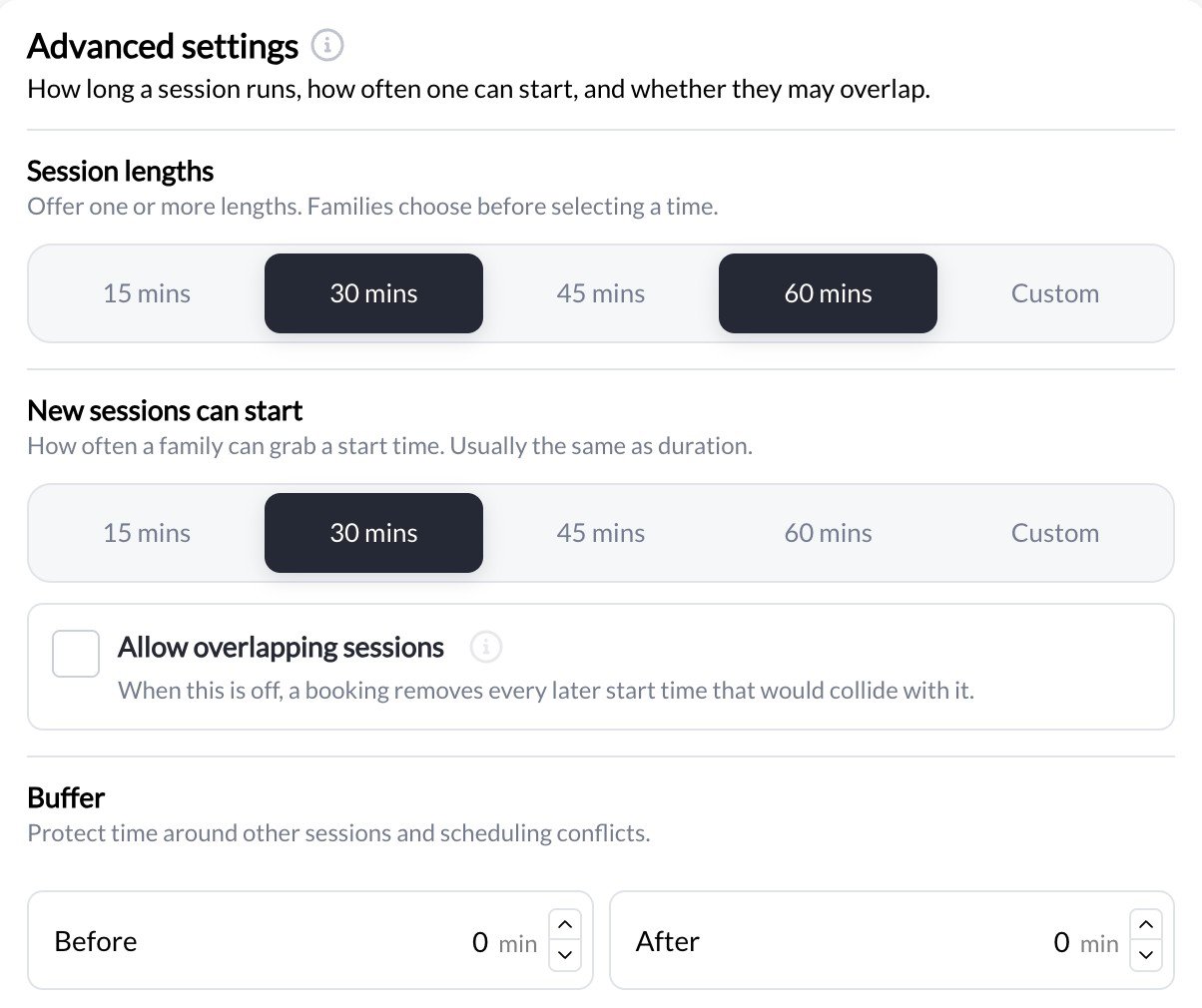
3
Choose Session lengths
Select the lengths you offer: 15, 30, 45, or 60 mins, or Custom. Families choose a length before choosing a time.
4
Set New sessions can start
Choose how often a start time is offered. Leave it equal to the duration for back-to-back slots, or make it shorter to offer more start times.
5
Decide on Allow overlapping sessions
Leave the box unchecked to prevent overlapping start times. A group session can still accept multiple athletes at the same start time up to its capacity. Check it only when athletes really can be in the space at the same time.
6
Save
Click Update in the top right.
What athletes see
Athletes see each offered start time as a separate slot on the booking calendar, with how many spots are still open for each. With overlap off, start times that would collide with an existing booking simply stop appearing.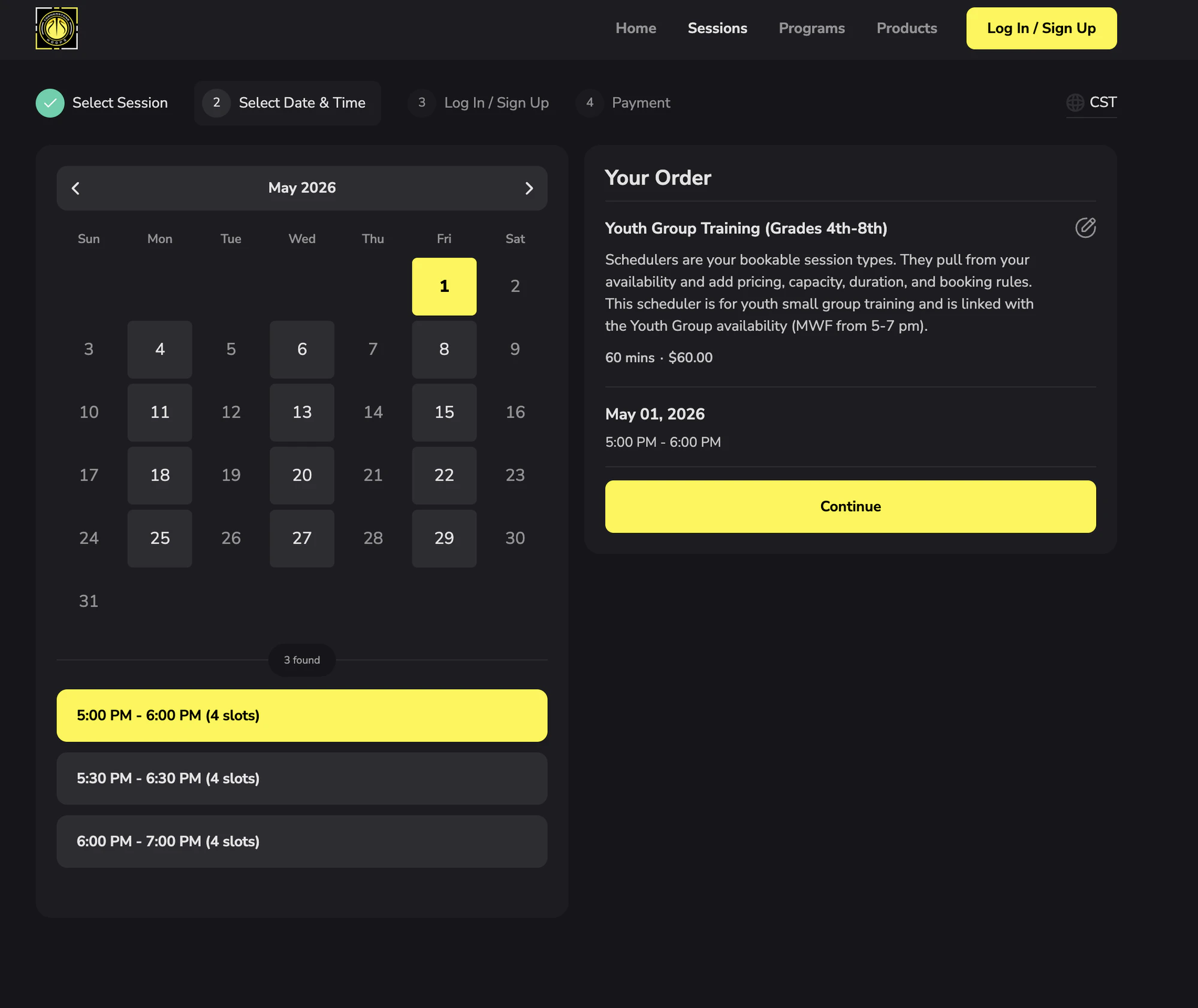
Things to know
- Allow overlapping sessions only concerns bookings of this scheduler. Coach and resource conflicts with other schedulers are still enforced unless you turn those off separately (the connected-coaches checkbox and Allow resource double booking).
- Capacity is per start time. With overlap on, each start time fills independently; see Session capacity.
- These settings are per scheduler, so you can offer rolling starts on drop-ins and leave lessons on the hour.
- Card and credit payments behave the same way; the payment method does not change which start times are offered.
- Buffers (before and after, in the same Advanced settings section) still add time around each session. If you use a short start cadence together with buffers, test the booking page to make sure the start times you expect are the ones offered.