

Bookings
Bookings (under Sessions in the menu) lists everything a family has booked, upcoming and past.- Whose booking it is: each row is labeled Me or with the child’s name. A parent with several athletes can filter with the chips at the top; when one athlete has nothing booked, the list says so with a Book button.
- Actions: each booking’s buttons are labeled, and a completed session shows a green check. If a booking can’t be canceled, for example because it’s inside your cancellation notice window, the row says why.
- Long lists: Show more sits at the bottom while there are more upcoming bookings, and the next ones also load as the family scrolls. If loading fails, the list says “Couldn’t load more bookings.” with Try again.
- On phones, each booking shows the day, the date and its actions on one row. On tablets, the booking page puts the order summary beside the calendar.
Cancel and reschedule
When a family cancels or reschedules, the window says what will happen before they confirm, such as the spot being released or a credit going back to them. Reschedule names the booking being moved. The safe choice is always in the same place, at every screen width. What families can change follows each scheduler’s rules: whether they can reschedule, and how close to the start they can still cancel. See Edit and reschedule bookings and Cancel bookings. A parent can change a child’s booking; see Family accounts › Changing a child’s booking.Checkout
Checkout is the same steps whether a family buys a product or books a paid session. On a phone, the step names sit in one row that scrolls sideways to the current step, and the Continue button always stays above the menu at the bottom, even when an error shows.- Log in / Sign up: visitors who aren’t signed in sign in or create an account first.
- Joining your club: someone signed in who isn’t a member yet sees a Ready to join? card with one Join Now button, then carries on. This works the same for booking a session and buying a product.
- Who it’s for: a parent picks which athlete the purchase or booking is for. If that child already has the product active, checkout says so before payment and doesn’t charge again. See Family accounts.
- Payment details: the billing schedule shows the first charge and the renewal date. The first payment can differ from the renewal price because of a setup fee or a coupon, and a membership that starts billing later shows its billing date (that isn’t necessarily a free trial). See The amounts families see.
- Card: the family picks one saved card or a new card, and the selected choice is clearly marked. The card marked Default in Billing is picked to start with. If saved cards are slow to load, the new-card form shows straight away with Retry.
Settings › Billing
Settings has Profile, Groups, Family (parents only), Calendar and Billing. Billing is where families manage what they pay for.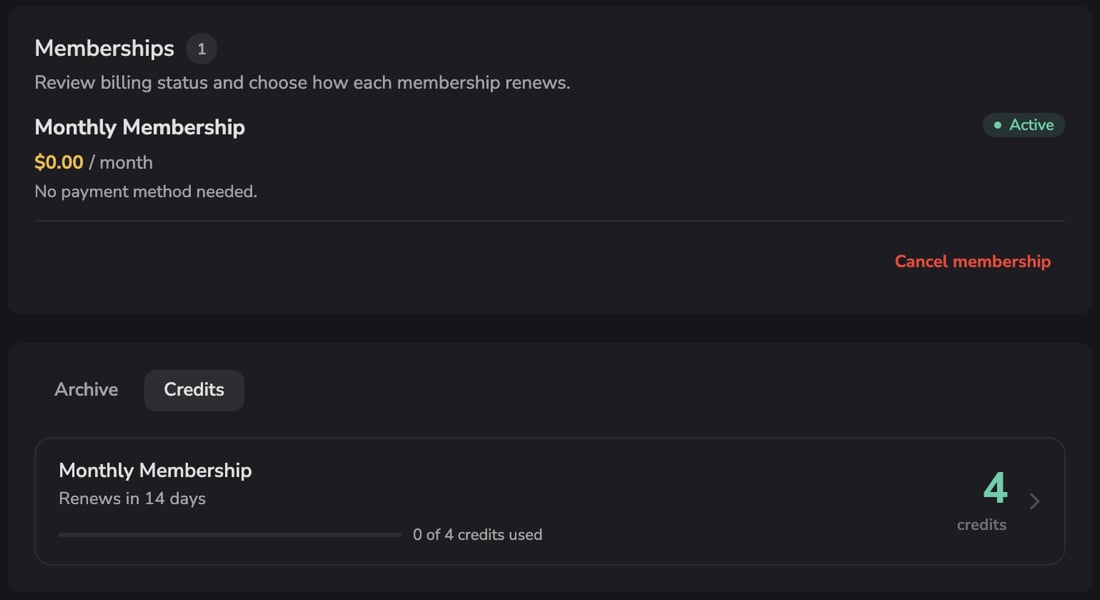
Payment methods
Saved cards, and bank accounts connected to memberships.- Set as default chooses the card memberships and checkout use.
- Remove card removes a card, unless it’s the only card paying for an active membership; then they’re asked to add another card first. Memberships that used the removed card move to the default card and aren’t canceled. They show Updating for a moment, then the default card; the removed card is never shown again.
- A family can change the card on a membership, including after a missed payment. A declined card shows the bank’s reason.
- If cards can’t load, the family sees “We couldn’t load your saved cards” with Retry. Their cards are still on file.
Memberships
Each membership shows its status, price, the card it bills to and how it renews, with Cancel membership.- A membership bought for a child is marked For and the child’s name, and keeps that line after it’s canceled until its access ends.
- Access end dates and the dates in the cancel window show in the family’s own time zone, for example “Access until Nov 25, 2026 at 11:22 AM PST”. Your admin shows the same date.
- A membership with nothing to pay, such as a free one or one you granted, says “No payment method needed.”
- A trial shows its end date next to the price. A membership whose payments you paused in Stripe shows Payments paused, and when they resume if you set a date; the family keeps their access, bookings and credits meanwhile.
- If memberships can’t load, the family sees a notice with Retry, not an empty list. “No active memberships.” only shows when there really are none.
Credits
Each credit pack shows what it’s for, how many credits are left, a labeled bar of credits used, when it renews and when it expires (including “Expires today”). A pack with no cap reads No limit. Click a pack to see its details and history.- Credit use paused with “Contact your coach” means a membership payment failed, so its credits can’t be used until it’s paid. See Failed payments.
- A pack from a lapsed membership shows its status and a Re-subscribe button. One-time credit packs show Active, Expired, Credits unavailable or No credits left instead.
- When a pack’s credits expire on different dates, the card names the next expiry and what has already expired.
- A parent sees their own packs first, then each child’s packs marked For and the child’s name.
Archive
Archive lists past purchases and memberships, with dates and times in the family’s own time zone. The first payment of a membership shows what was actually paid, for example “Initial payment $15.00 (after $5.00 credit)”. A free trial canceled before it ended shows an initial payment of $0.00. If the first payment can’t be confirmed, the row says “Payment details unavailable” instead of guessing an amount.Orders
Orders (under Products in the menu, and in the account menu) lists a family’s purchases, newest first, with who each one is for and the first payment, the same way as the Billing archive.- If Orders can’t load, the family sees a short message with Try again, not “No orders found”.
- Someone who opens Orders from an old link after their sign-in expired sees “Sign in again to see your orders” with a sign-in link. Their orders show once they sign in.
Helping a family
Related articles
Family accounts
Parents, children, and whose booking or purchase it is
Products page
What families can buy in your app
Your app on iPhone and Android
Booking and buying in the mobile app
Credits overview
How credit packs work