

Where to find this: Scheduling → Setup → Defaults
What defaults do
Every scheduler carries the same set of timing and booking rules. The Defaults tab (“Defaults for every new scheduler”) is where you set the starting values, so each new scheduler you create is already right for how you run your business. Create scheduler preloads these settings, and you can still override any of them on an individual scheduler under its Advanced settings. Click Save defaults to apply your changes.Defaults apply to schedulers you create after you change them. Existing schedulers keep their own values.
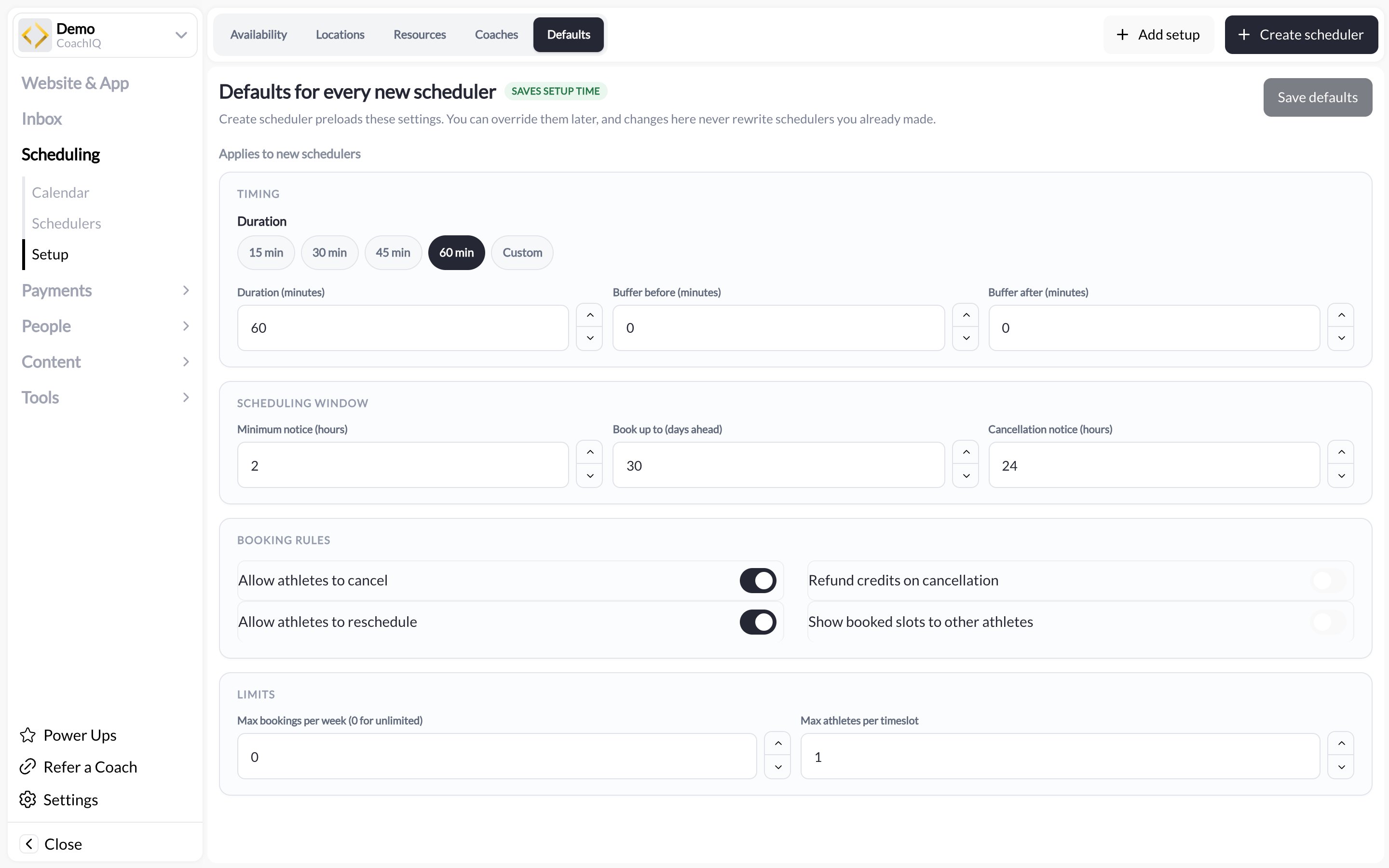
The four groups
Timing
Buffers reduce how many slots fit in a day. A 60-minute lesson with a 15-minute buffer after it uses 75 minutes of availability.
Scheduling window
Booking rules
Limits
Recommended starting points
These are a place to begin. Tighten the cancellation notice if late cancels are hurting revenue; loosen minimum notice if athletes complain they cannot book same-day.
Overriding on one scheduler
Open the scheduler and expand Advanced settings. The scheduler keeps its own settings, originally copied from defaults when it was created. Change what you need for that session only. Full detail in Advanced scheduler settings and Scheduler settings, limits, and permissions.Common questions
I changed a default. Why didn't my existing schedulers change?
I changed a default. Why didn't my existing schedulers change?
Defaults are copied into a scheduler when it is created. Edit the existing scheduler’s Advanced settings to update it.
What happens when an athlete cancels inside the cancellation window?
What happens when an athlete cancels inside the cancellation window?
The athlete cannot cancel from the portal. You can still cancel for them from the calendar, and decide whether to refund the credit. See Canceling bookings.
Does 'book up to N days ahead' hide my whole calendar?
Does 'book up to N days ahead' hide my whole calendar?
It hides slots beyond that horizon from athletes only. Staff can review dates in the admin calendar and use the available manual booking controls; other booking checks may still apply.
Related articles
Advanced scheduler settings
Every per-scheduler override explained
Credit-based scheduling
How refund-on-cancel interacts with credits
Locations
Where sessions happen
Coaches
Who takes bookings, and when