

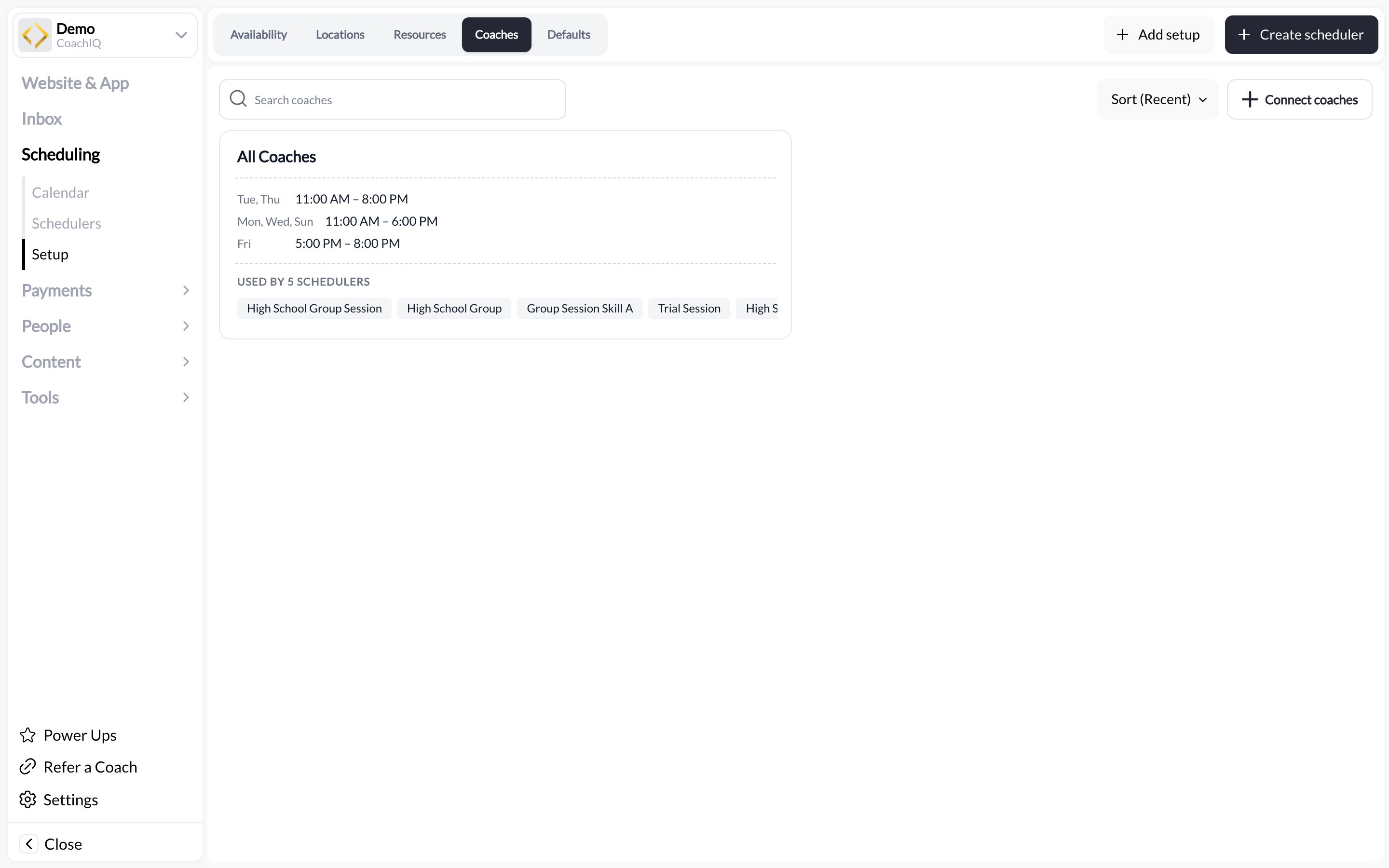
Connect a coach
- Confirm the person has the appropriate staff role in People → Staff.
- In Scheduling → Setup → Coaches, choose Connect coaches and select them.
- Set their working availability.
- Open the relevant scheduler, find Coaches, and select the coaches who deliver that service.
- Save and review the available times for that scheduler.
Assign a coach to one session
To change staffing for a particular date, open the booked session on Scheduling → Calendar and edit its coach assignment. Check the date and participants so you change the intended occurrence rather than the service’s default staffing.How coach conflicts work
Coach assignments help prevent bookings that require the same coach at the same time. The result also depends on the scheduler’s overlap settings and whether it uses specific coaches or All. All is not a promise that CoachIQ will automatically choose and rotate through an available coach. Review its conflict setting and assign specific coaches when staffing needs to be explicit. See Schedule multiple coaches.Help athletes book the right coach
Review the customer booking flow for your scheduler’s configured coach options. Adding several coaches alone does not establish how a coach will be selected at checkout. If a service must always be with a particular coach, a clearly named coach-specific scheduler is one way to make that choice explicit. Use separate schedulers when coaches offer different services or need independent availability and pricing.Troubleshooting
- Coach missing: Check the staff role and whether they have been connected to scheduling.
- Expected time unavailable: Check coach hours, the scheduler’s availability, and other bookings requiring that coach.
- Coach cannot edit scheduling: Review their staff permissions.
- Two services conflict unexpectedly: Check their specific-coach or All-coaches assignments and overlap rules.