

Each tab lists the upcoming blocks of that kind, with Edit and Delete on each one. When there are none it says “No upcoming blocks. Clients can’t book blocked time.”
Block time across schedulers
1
Open Block time
Go to Scheduling → Setup → Availability and click Block time. Stay on the Availability tab and click New block.
2
Name the block
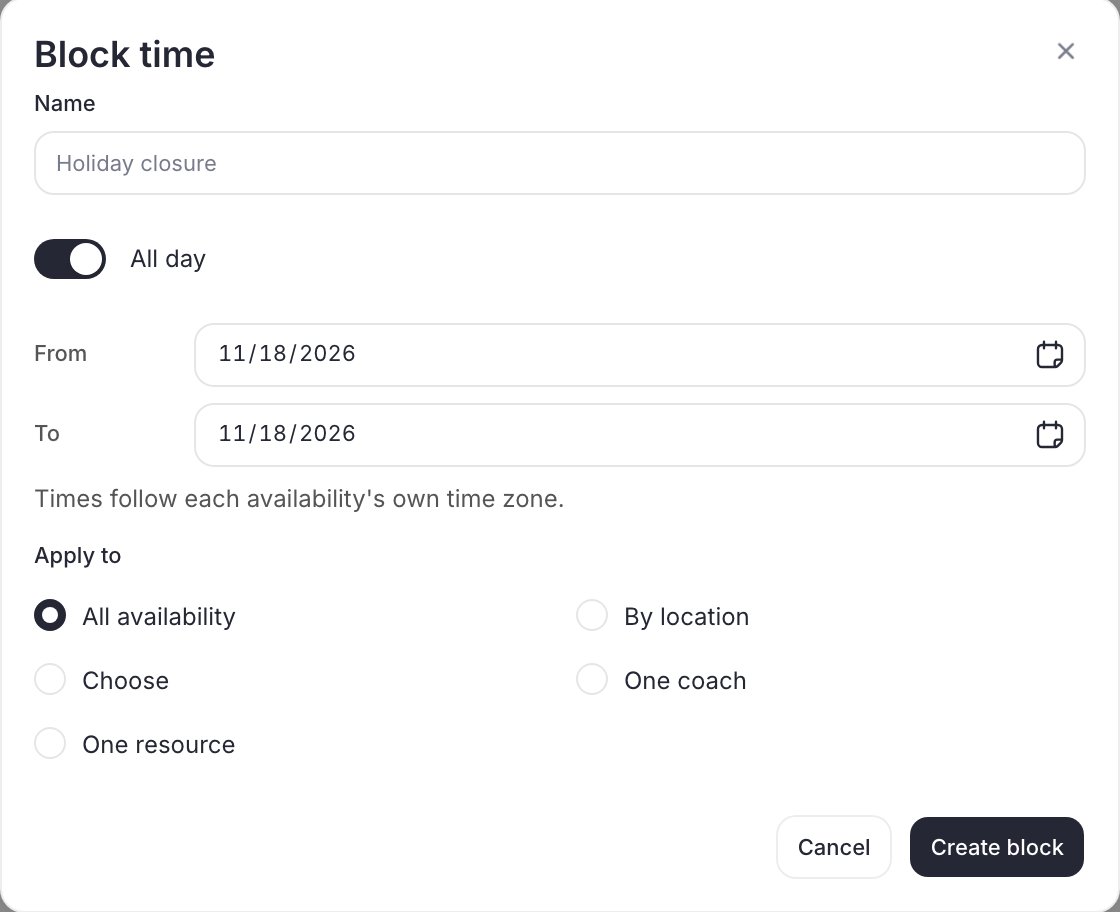
Enter a Name, for example “Thanksgiving”. The name shows in each affected scheduler’s Specific Dates list, so pick something your staff will recognize.
3
Set the time
Leave All day on to close whole days, or turn it off to block part of a day. Set From and To. Times follow each availability’s own time zone.
4
Choose what it applies to
Under Apply to, pick one:
- All availability: every scheduler in the group.
- By location: the schedulers at the locations you choose.
- Choose: only the schedulers you pick.
- One coach or One resource: switches you to the Coach or resource form (below).
5
Check existing bookings and create
Before you save, the window lists any bookings already inside the blocked time. Click Create block.
Block one coach or one resource
Use this when the business stays open but one person or one space isn’t available.1
Open the Coach or resource tab
In Scheduling → Setup → Availability → Block time, open the Coach or resource tab and click New block.
2
Choose who or what
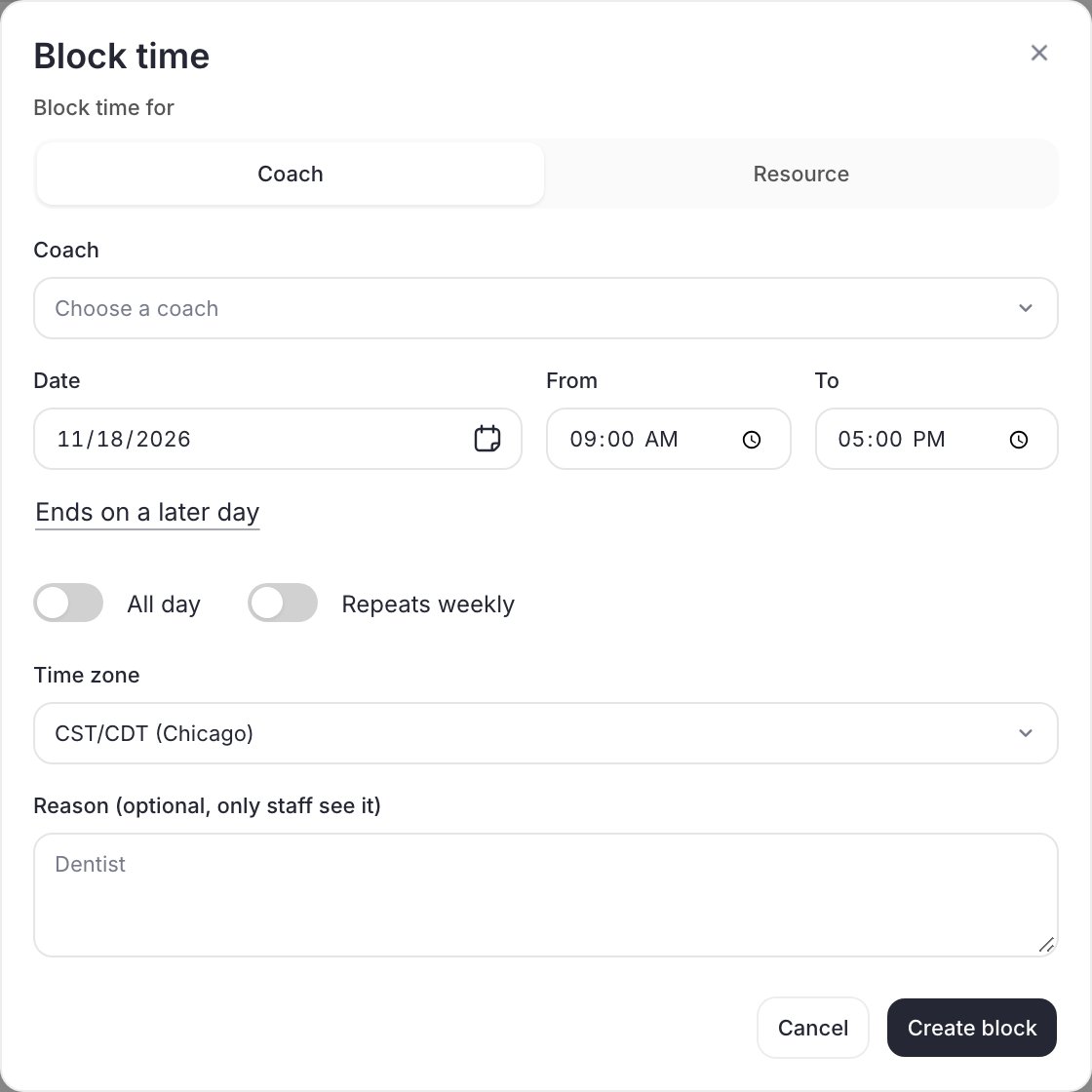
Under Block time for, pick Coach or Resource, then choose the coach or resource.
3
Set the date and time
A new block starts as one day: Date, From and To (9:00 AM to 5:00 PM). Click Ends on a later day for a date range. Turn on All day to block whole days, or Repeats weekly to block chosen weekdays every week. The Time zone starts on your business’s default.
4
Add a reason and create
The Reason is optional and only staff see it. A block with no reason is named “Blocked time”. Click Create block (or Save when you’re editing a block).
- Only that coach’s or resource’s times stop showing as open. Everything else stays bookable.
- Schedulers set to All coaches aren’t tied to one coach, so a coach block doesn’t close them.
- A scheduler that uses Use first available skips the blocked resource and books another free one from its pool. See Resources.
- Moving a session onto a blocked resource is refused, and the message names the resource and the block.
- Blocks show on the admin calendar on the web and in the CoachIQ app.
Bookings already inside a block
Blocking time never cancels or moves bookings that were made before the block. The window lists them before you save so you can decide what to do:- Open Scheduling → Calendar and go to the blocked dates.
- Use Move in the session to move the whole session, or Cancel Session to cancel it for everyone.
- To handle one athlete, open that athlete’s booking instead.
Other ways to close time
If a blocked time is still bookable
- Check Apply to: the scheduler may not be covered by the block.
- For a coach block, check whether the scheduler is set to All coaches. Those aren’t closed by one coach’s block.
- For a partial-day block, check the times around it. Session length and buffers decide whether nearby start times still fit.
- Open the scheduler’s Specific Dates list and look for the block by name.